Split Orders
Role: Box Office Staff, Administrators
Splitting an order divides a multi-ticket order into two separate orders, each with its own subset of tickets and seats. This is useful when part of a group needs different handling.
Navigation: Stagemgr > Orders > Ticket Orders > [Select Order] > Split Order
Overview
The split order feature takes a single order containing multiple tickets and divides it into two new orders. The original order is marked as Split (a terminal state), and two new orders are created, each containing a portion of the original tickets.
When Is Splitting Available?
The Split Order button appears when all of the following conditions are met:
| Condition | Requirement |
|---|---|
| Number of tickets | Order must contain more than 1 ticket |
| Order status | Must be Processed, Unclaimed, or Fulfilled |
| Payment type | Must not be paid with a Membership |
| Mixed payment | Must not be paid with both a pass (membership or flex pass) and a money payment |
Orders Paid With a Pass and Money
A split shares the payments out across the tickets, so it cannot keep track of which seats a pass paid for. An order paid with both a pass and money -- for example a flex pass order with a card-paid seat added through Add to Order -- cannot be split or exchanged. Refund the order and place new ones instead. For reserved seating, Update seating still lets you change seats on the order.
Single-Ticket Orders
An order with only one ticket cannot be split. There must be at least two tickets to divide.
Split Process
Step 1: Initiate the Split
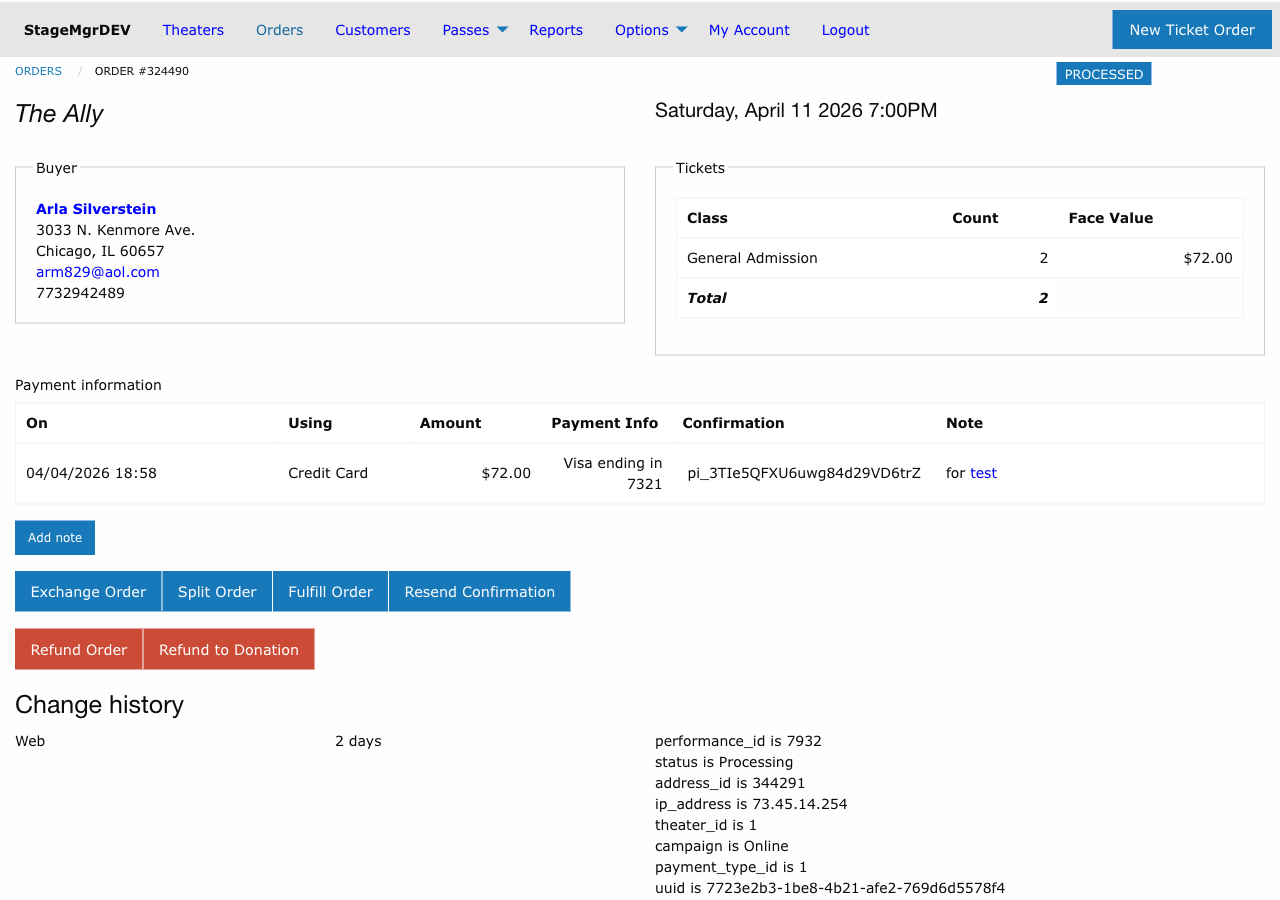
- Navigate to the ticket order you want to split
- Click Split Order
- The split interface appears, showing all tickets on the order
Step 2: Assign Tickets to New Orders
The interface displays all ticket line items from the original order. You assign each ticket to one of the two new orders:
| Assignment | Description |
|---|---|
| Order A | First new order -- receives the assigned tickets |
| Order B | Second new order -- receives the remaining tickets |
Each ticket must be assigned to exactly one of the two new orders. At least one ticket must be in each order.
Step 3: Seat Redistribution (Reserved Seating)
For reserved seating orders, seats must be redistributed along with the tickets:
- Each seat assignment from the original order is linked to a specific ticket
- When tickets are assigned to the new orders, their seat assignments follow
- Verify that the seat distribution makes sense (e.g., keeping adjacent seats together for groups)
Step 4: Confirm the Split
- Review the ticket and seat distribution between the two new orders
- Confirm the split
- The system creates the two new orders
What Happens During a Split
| Item | Result |
|---|---|
| Original order | Status changes to Split (terminal) |
| New Order A | Created with assigned tickets, same patron address, same payment proportionally allocated |
| New Order B | Created with remaining tickets, same patron address, same payment proportionally allocated |
| Ticket line items | Redistributed between the two new orders |
| Seat assignments | Moved to the corresponding new orders (reserved seating) |
| Payment | Distributed proportionally based on ticket values |
| Order notes | Original order notes are copied to both new orders |
After the Split
Each new order is an independent order that can be managed separately:
- Exchange one order while keeping the other
- Refund one order while keeping the other
- Refund to Donation on one order
- Fulfill each order independently
- Further split either new order (if it has multiple tickets)
The original order remains in the system with Split status for audit purposes. It references both new orders.
Common Use Cases
Partial Refund
Since Stagemgr only supports full-order refunds, splitting enables partial refunds:
- Split the order, placing the tickets to be refunded in one order
- Refund that order
- The other order retains the tickets the patron wants to keep
Group Separation
A group purchased tickets together but some members need changes:
- Split the order to separate the members who need changes
- Exchange, refund, or modify the separated order as needed
- The remaining group members' order is unaffected
Partial Donation
Some tickets in an order should be donated while others are kept:
- Split the order to separate the tickets being donated
- Use Refund to Donation on the donation portion
- The other order remains as-is
Plan Before Splitting
Decide exactly which tickets go to which order before starting the split. This avoids confusion and ensures the right tickets end up in the right order.
Important Rules
- Terminal operation -- The original order becomes Split and cannot be restored
- Two orders only -- Each split creates exactly two new orders. To split into three, perform a second split on one of the new orders.
- Same patron -- Both new orders are associated with the same patron address as the original
- Audit trail -- The original order references both new orders, and each new order references the original
- Membership restriction -- Orders paid with a membership cannot be split
- Mixed payment restriction -- Orders paid with both a pass and money cannot be split
Troubleshooting
| Issue | Resolution |
|---|---|
| Split button not available | Verify the order has more than one ticket, is in an eligible status, was not paid with a membership, and was not paid with both a pass and money |
| Cannot assign seats correctly | Review the seat map to ensure each seat is assigned to the correct new order |
| Need to undo a split | Not possible; manage the two new orders individually instead |
| Payment distribution seems wrong | Payment is split proportionally by ticket value; verify the ticket class pricing |