Managing Memberships
Access
The Memberships list is available to Admin and Box Office users only. Theater users do not see the Passes > Memberships menu entry.
Navigation: Passes > Memberships
Overview
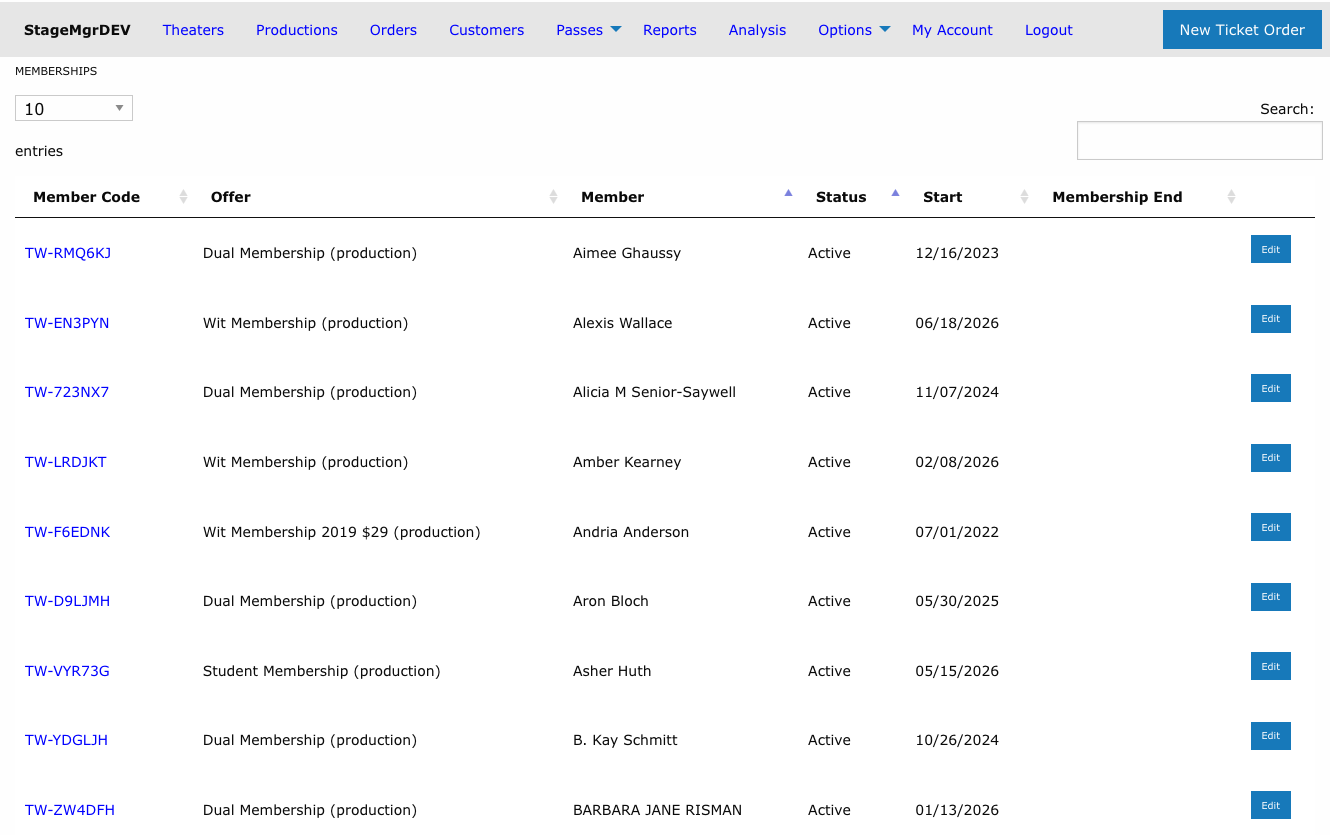
The Memberships list shows every individual membership in the system -- one row per membership record -- with live search, sorting, and paging. Use it to look up a member by name or member code, check whether a membership is still active, and see when it started and ended.
Columns
| Column | Description |
|---|---|
| Member Code | The membership's unique code. Click it to open the membership detail page. |
| Offer | The membership offer the membership was purchased or issued under, followed by its type labels as on the Membership Offers list: Production or Timed, plus Prepaid for a one-time offer. |
| Member | The patron's name. Searching by first or last name matches this column. |
| Status | Active, Suspended, Canceled, Pending, or Expired. |
| Start | When the membership began -- the billing subscription's start date when one exists, otherwise the date the membership record was created. |
| Membership End | When the membership ended or will end. See below. |
| Duration (months) | How long the membership has run, in months. See below. |
How Membership End is determined
- For canceled or expired memberships, this is the date the membership actually closed.
- For an active membership scheduled to cancel at the end of its billing period, the final billing date is shown with a Cancel pending label. This includes gift subscriptions, which are set to end after the offer's Gift duration cycles.
- For an active one-time membership, its last valid day is shown with an Expires label.
- A blank value means the membership is ongoing with no scheduled end.
How Duration is counted
- It runs from Start to the membership's end: today for an Active membership, otherwise the date it closed.
- A partial month counts as a full month: January 5 to January 30 is 1, January 15 to February 8 is 1, and January 15 to February 20 is 2.
- It is never less than 0, and it is blank when a membership that is not Active has no end date (for example, Pending).
- You can sort by it, but the search box does not match it.
Filtering, Sorting and Searching
- The buttons above the search box show only memberships with one status: All, Active, Suspended, Canceled, Pending or Expired. All is the default, and your choice is remembered between visits.
- Default order puts memberships in status priority -- Active first, then Suspended, then Canceled -- with members alphabetical within each status.
- Click any column header to sort by that column instead; click again to reverse.
- The Search box matches member codes (by prefix), member first/last names, offer names, and statuses, narrowing as you type.
- Paging and your last search are remembered between visits.
Finding one member quickly
Type the first few characters of the member code (e.g. TW-RM) or the member's last name. The list filters server-side, so it stays fast no matter how many memberships exist.
Row Actions
| Action | What it does |
|---|---|
| Member Code link | Opens the membership's detail page. |
| Edit | Opens the membership's edit form (status, member since, preferred seating, and Expires on for a one-time membership). |
The detail page also offers Generate Member ID Card; see below.
One-time memberships
A membership bought under an offer with a one-time Stripe price is paid once and runs for a fixed term (see Membership Offers -- One-time memberships). Instead of Next Billing Date and Manage Subscription, its detail page shows:
| Field | Meaning |
|---|---|
| Expires | The last day the membership can be used. Tickets for a performance after this date cannot be paid for with it. |
Its edit form adds an Expires on field, with the hint Last day this one-time membership can be used. Change it to extend or shorten the term. Orders already booked are not affected; the new date applies to tickets paid for with the membership from then on.
In the list, Membership End shows the same date with an Expires label. The day
after it, a nightly job (1:15 am) sets the status to Expired, and Membership End
shows the date without the label. Expiring removes the member from the
offer's MyEmma group like any other status change. If the job cannot save a membership,
it emails the membership_notifications address. The membership stays Active, and can
still be used to book, until the record is fixed.
Redemptions
A membership's detail page lists its Redemptions: every order paid for in whole or in part with the membership. The table works like Order History on a patron's page, with the same columns (Order, Created, Description, Amount, Status) plus Paid by membership, the share of the order the membership covered. Amount is the order's total paid, so an order with a membership share smaller than its Amount was partly paid another way. Exchanged and refunded orders stay listed with their status. A refunded order's membership share nets to $0.00. An exchanged order still shows what the membership originally paid, and its replacement order appears as a separate row.
Generating a Member ID Card
A membership's detail page (open it from the Member Code link) has a
Generate Member ID Card button when the membership's offer has card artwork
uploaded (see Membership Offers -- Member ID Card Artwork).
Clicking it downloads a PNG named after the member code, for example
member-card-tw-abc123.png, ready to print on a CR-80 card printer.
The card shows four things from the record:
| On the card | Comes from |
|---|---|
| Photo | The patron's photo on their address record. Without one the card prints with the background showing through the photo panel. Square-ish, face near the middle, at least 400 px on the short side prints best. |
| Name | The address's full name, as stored. Long names shrink and wrap onto two lines automatically. |
| Member number | The member code, printed exactly as shown. |
| Since | The year this patron first became a member, across all of their memberships -- a patron who lapsed and rejoined keeps their original year. |
Printing
The PNG is tagged 300 dpi. Print at 100%, never "fit to page": the artwork already allows for the printer's unprinted edge.
If the offer has no card background, the detail page shows a note instead of the button, with a link to the offer's edit form for administrators.
Creating a Membership
Memberships are not created from this list. A paid membership comes from a membership order: use Create Order on the Membership Offers list so billing is set up. A shared library pass is issued with Issue Pass on its timed offer.
Email list sync
When a membership becomes Active, the member's address is automatically added to the offer's MyEmma email group (if one is configured); when it is canceled, suspended or expired, the address is removed -- unless the patron still holds another current membership. The sync runs as a background job. See Membership Offers -- Email Integration.