Membership Offers
Who uses this?
Box Office Managers and Development Staff configure membership offers to provide recurring ticket benefits, guest privileges, and subscriber management.
Navigation: Admin > Offers > Membership Offers
Overview
Memberships grant patrons a set number of tickets per performance, optional guest tickets, and other benefits. Most are subscriptions billed on a recurring cycle through the payment processor, and can include trial periods and gift options. A membership whose Stripe price is a one-time price is instead paid once, up front, and runs for a fixed term -- the usual setup for a prepaid gift membership. See One-time memberships.
Creating a Membership Offer
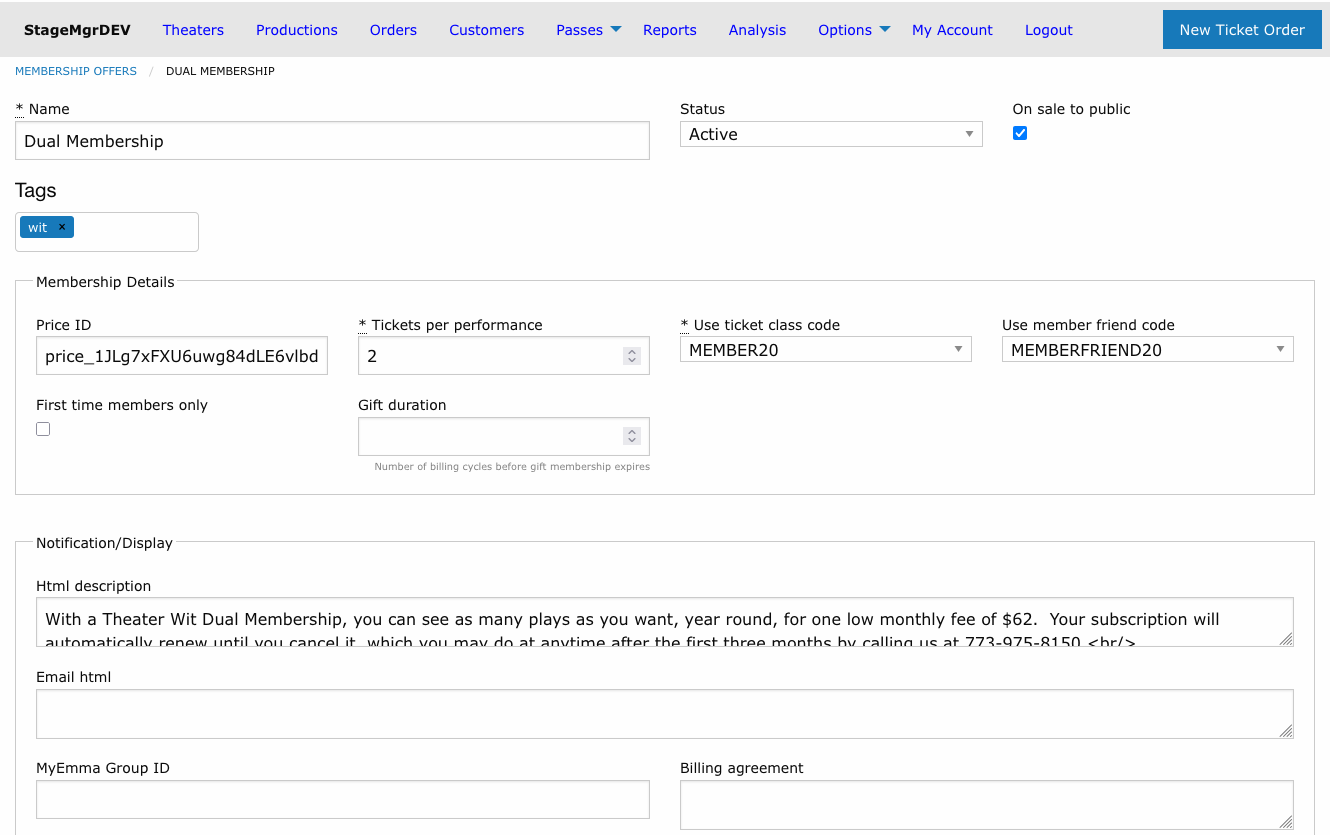
Core Fields
| Field | Description |
|---|---|
| Name | Display name for the membership tier (e.g., "Gold Membership"). |
| Status | Active or Inactive. Only active memberships can be purchased. |
| On Sale | Whether the membership is available for purchase on the public website. |
| Price ID | The price identifier from the payment processor (Stripe). A recurring price controls the billing amount and cycle; a one-time price makes this a prepaid, fixed-term membership. |
Price ID must be configured in Stripe first
Create the price in your Stripe dashboard before setting up the membership offer. The Price ID links the membership to the correct billing plan, and whether that price is recurring or one-time decides how the membership is charged.
When you save an offer with a new Price ID, Stagemgr reads that price's billing period (monthly, yearly, one-time and so on) from Stripe in the background and shows it as Billing period on the offer's page. Until it has been read, or if Stripe does not recognise the price, the page says Monthly (assumed; not synced from Stripe). Membership Analysis uses the billing period to spread each payment across the months it pays for.
Ticket Allocations
| Field | Description |
|---|---|
| Tickets Per Performance | Number of tickets the member receives for each performance they attend. The limit covers all of the member's orders for that performance together, not each order separately. |
| Use Ticket Class Code | The ticket class assigned to the member's own tickets on redemption. |
| Use Member Friend Code | Turns on the twice-yearly bring a friend pass. Choose the ticket class the friend's seat should be booked under; leave it blank for no friend passes. See How Friend Passes Work. |
Member vs. friend ticket classes
Use a ticket class for friend passes that is distinct from the member's own class, so friend admissions show separately in attendance and settlement reports.
Restrictions
| Field | Description |
|---|---|
| Restricted to First Time | When checked, only patrons who have never held a membership before can purchase this offer. Useful for introductory or trial-rate memberships. |
Trial Period
| Field | Description |
|---|---|
| Trial Period | Number of days the member enjoys a reduced trial price before full billing begins. |
| Trial Price | The discounted price charged during the trial period. |
Leave both fields blank to skip the trial period and begin full-price billing immediately.
Gift Memberships
| Field | Description |
|---|---|
| Gift duration | How long a gift lasts. Its meaning depends on the offer's Stripe price, as the form's hint says: Recurring price: billing cycles before a gift subscription ends. One-time price: months the gift lasts (blank = 12). |
Recurring price -- billing cycles. When the membership is bought as a gift, the
subscription is set to end after this many billing cycles of the price, and the giver
is charged no more after that. A monthly price with Gift duration 12 bills 12
months; a yearly price with 2 bills two years. When the last cycle ends, the
membership becomes Canceled. Until then it shows Cancel pending with its final
billing date. Leave the field blank and a gift subscription renews like any other
until it is cancelled. The gift purchase page tells the buyer, for example, "This gift
membership renews for 12 months and then ends."
One-time price -- months. The whole term is paid at checkout, and the membership lasts this many months (12 when the field is blank). Every purchase of a one-time offer gets this term, whether or not it is a gift. The gift purchase page shows "This gift membership lasts 12 months and does not renew."
A one-time offer's Gift duration is in months, not cycles
A one-time price has no billing cycles, so the number is read as months. An offer
that held 1 when it was billed yearly will run for one month once its price is
switched to a one-time price. Set it to 12 for a one-year gift.
The term starts on the purchase date or, for a gift, on the Keep secret until... date if that is later. That is also when the recipient is sent their member number.
Email Integration
| Field | Description |
|---|---|
| MyEmma Group ID | The email list group ID in MyEmma. Members are automatically kept in sync with this group for targeted email campaigns. |
How the sync works:
- When a membership on this offer becomes Active, the member's address is added to the group.
- When a membership is Canceled, Suspended or Expired, the address is removed -- unless the patron still holds another current membership.
- If you change the group ID on the offer, every active membership's address is added to the new group automatically. Addresses are not removed from the old group.
All sync work runs as background jobs, so saving the form returns immediately and any email-service hiccup is retried without affecting the membership itself.
Only shown when MyEmma is configured
The MyEmma Group ID field (and the matching row on the offer detail page) appears only when the MyEmma integration is enabled for this installation.
Content
| Field | Description |
|---|---|
| HTML Description | Rich HTML content displayed on the membership detail/sales page. |
| Confirmation Email Text | Text added to the membership confirmation email sent after purchase. Markdown enabled; hand-written HTML tags still work. Send sample email in its header mails you the confirmation with the offer name and text as typed; no membership is created. |
Member ID Card Artwork
The Member ID Card section holds the artwork staff need to print a physical membership card for any membership on this offer. Nothing is drawn per offer at print time: the background you upload is the finished card face for this offer, and the renderer adds only the member's photo, name, member number and since year.
| Upload | Required? | What it is |
|---|---|---|
| Background | Yes | The whole card except the four variable fields. A 1011 x 638 px PNG (85.6 x 54 mm at 300 dpi). Until one is uploaded, memberships on this offer show no card button. |
| Front overlay | No | A 1011 x 638 px PNG with transparency, layered over the photo and background: a tint over the photo, a frame around it, a logo. Anything opaque here hides what is underneath. |
| Name font | No | An .otf or .ttf file for the member's name. Falls back to Helvetica Bold. |
| Label font | No | An .otf or .ttf file for the member number and since year. Falls back to Helvetica. |
Backgrounds and overlays must be exactly 1011 x 638 pixels
A file of any other size is rejected when you save the offer. A resized export would misplace every field on the printed card, so regenerate the artwork at the card size instead of scaling it.
Fonts live on the offer rather than in the software because a house's typefaces are usually commercially licensed. Upload the same two font files to every offer that should print in them.
Once a background is uploaded, the offer detail page shows a thumbnail of it
under Member ID Card in the Offer Details panel. The edit form shows a
preview of every upload above its file field, with Not uploaded in any empty
slot, so you can see what a new upload will replace.
The exact geometry of the card is documented for developers in Membership card rendering specification.
Tags
Tags are free-form labels you can attach to a membership offer to group it for analysis and reporting -- for example by campaign, tier family, season, or any attribute you want to slice by later. Tags are arbitrary text you define and can change at any time.
A membership offer can have any number of tags. They appear as rounded pill labels in the Tags field on the offer form, next to the offer name in the Membership Offers list, and on the offer detail page.
Adding a tag
- Click into the Tags field on the membership offer form.
- Begin typing. As you type, a dropdown suggests existing tag names already used on other membership offers -- click one to apply it, or keep typing to create a brand-new tag.
- Press Enter (or type a comma) to commit the tag as a pill.
- Repeat to add as many tags as you need, then save the form.
Reuse existing tags when possible
The autocomplete suggestions help you converge on a consistent vocabulary. Tags are matched case-insensitively, so "Gift" and "gift" are treated as the same tag, with the casing of the first one preserved.
Removing a tag
Click the x on the right side of any pill to remove that tag, then save the form. The tag is removed from this offer only; it remains available on any other offer that uses it.
Search by tag
The search box on the Membership Offers list matches tag names as well as offer names, so you can quickly filter the list down to every offer sharing a tag.
How Membership Billing Works
- The patron selects a membership offer and completes checkout.
- If a Trial Period is configured, the patron is charged the Trial Price and the trial countdown begins.
- After the trial period ends (or immediately if no trial), recurring billing at the full price begins based on the Stripe price configuration.
- Each billing cycle, the payment processor charges the patron automatically.
- If the membership was purchased as a gift and the offer sets a Gift duration, billing stops after that many cycles and the membership becomes Canceled.
One-time memberships
An offer whose Price ID is a one-time Stripe price works differently:
- At checkout the patron's card is charged the full price once, on a Stripe invoice. No subscription is created, so nothing renews and the card is never charged again.
- The membership is Active straight away. Its term runs for Gift duration months (12 if blank), from the purchase date or a later gift date.
- The term ends on its Expires date, the last day it can be used. A 12-month membership starting October 6, 2026 expires October 5, 2027. Tickets for a performance after that date cannot be paid for with it.
- A nightly job at 1:15 am sets a membership to Expired the day after its Expires date. If a membership cannot be expired, usually because an old record fails validation, the job skips it and emails the
membership_notificationsaddress with the list. It retries those memberships every night until they are fixed. - If something goes wrong after the card is charged and the order cannot be completed, the charge is refunded automatically and the patron sees an error.
Staff can change a one-time membership's expiry date on its edit form; see Managing Memberships.
How Ticket Redemption Works
- A member visits the box office or logs in online to claim tickets for a performance.
- The system issues up to Tickets Per Performance tickets using the Use Ticket Class Code.
- Members can redeem tickets for each performance independently -- there is no total cap across the membership period.
The Use Member Friend Code plays no part in redemption. Friend seats are booked on a separate order with an emailed promo code, described next.
Tickets Per Performance Across Orders
The Tickets Per Performance limit counts every seat the membership has already paid for at that performance, on any of the member's current orders, plus the ones being requested. A second order that would take the member past the limit is refused with a message giving the limit and how many seats are already reserved on other orders. Exchanged, canceled and refunded orders do not count.
Extra seats paid another way -- for example by card through Add to Order -- do not count against the limit.
How Friend Passes Work
When an offer has a Use Member Friend Code, every membership sold on it earns a free "bring a friend" admission twice a year. Nothing else needs to be set up; the field being filled in is the switch.
- Scheduling. When the membership order is processed, Stagemgr queues an outreach task for four months after the membership start date, repeating every six months for as long as the membership lasts.
- The pass. When the task runs, Stagemgr creates a one-use special offer with a code beginning MF, good for one ticket on one order and expiring six months later. Applying the code switches the ticket to the offer's friend ticket class, which is normally a free class.
- The email. The member receives the code in a "Thanks for being a member" email from the artistic director. It explains that the friend's seat is booked as a separate general admission reservation with the code entered as the special offer.
- Tracking. Each MF code is linked to the membership that earned it and flagged as system generated, so it does not appear on the special offers list. Find it instead under Friend codes on the member's customer page or membership order. Unused codes are purged three months after they expire, like any other special offer.
The task is not sent when the member has no email address on file. It stops when the membership is Canceled; a membership that lapses by suspension or expiry keeps its queued task until it is canceled. Orders paid with a payment type that suppresses the task never receive friend passes.
Changing the field later
Clearing Use Member Friend Code on an offer stops future passes for every membership on it, even those already scheduled. Setting it on an offer that previously had none only affects memberships sold from then on; existing members are not back-filled.
Finding and Restoring a Friend Code
Every friend code a membership has earned is listed under Friend codes in the Active Memberships box on the member's customer page and in the membership detail on the membership order page, newest first, with its uses left and expiry date. A code that has been spent shows Used; one past its date shows Expired.
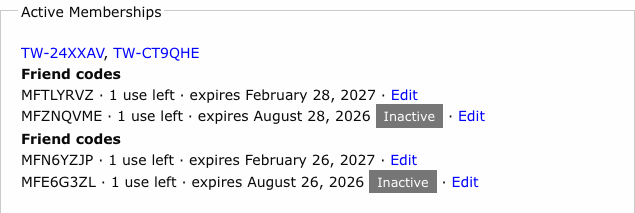
Box office staff and administrators can click Edit on any code to open its special offer form; saving returns to the customer page.
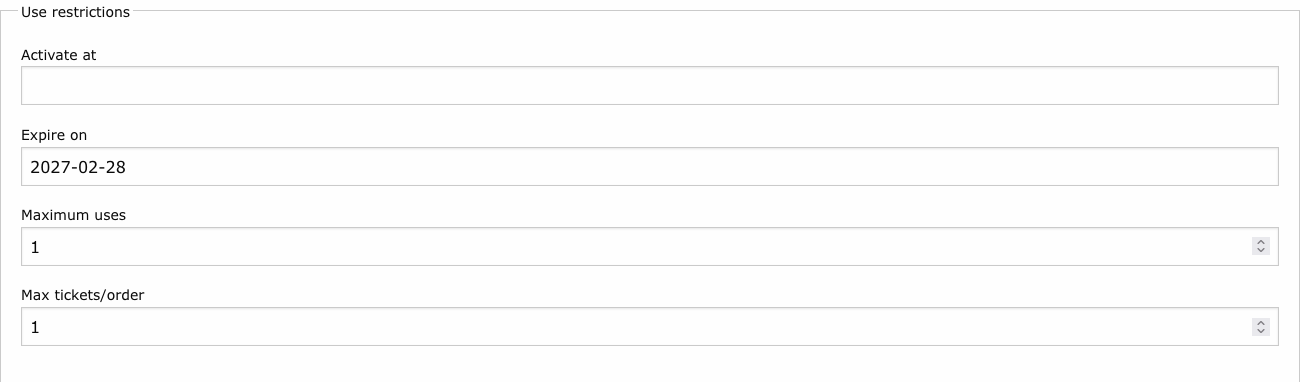
A code's use is not given back automatically when the friend's order is refunded. To let the
member use it again, click Edit, set Maximum uses back to 1 under Use
restrictions, and save. If the code has also expired, set its Status back to Active
and move Expire on to a future date in the same edit.
The Membership Offers List
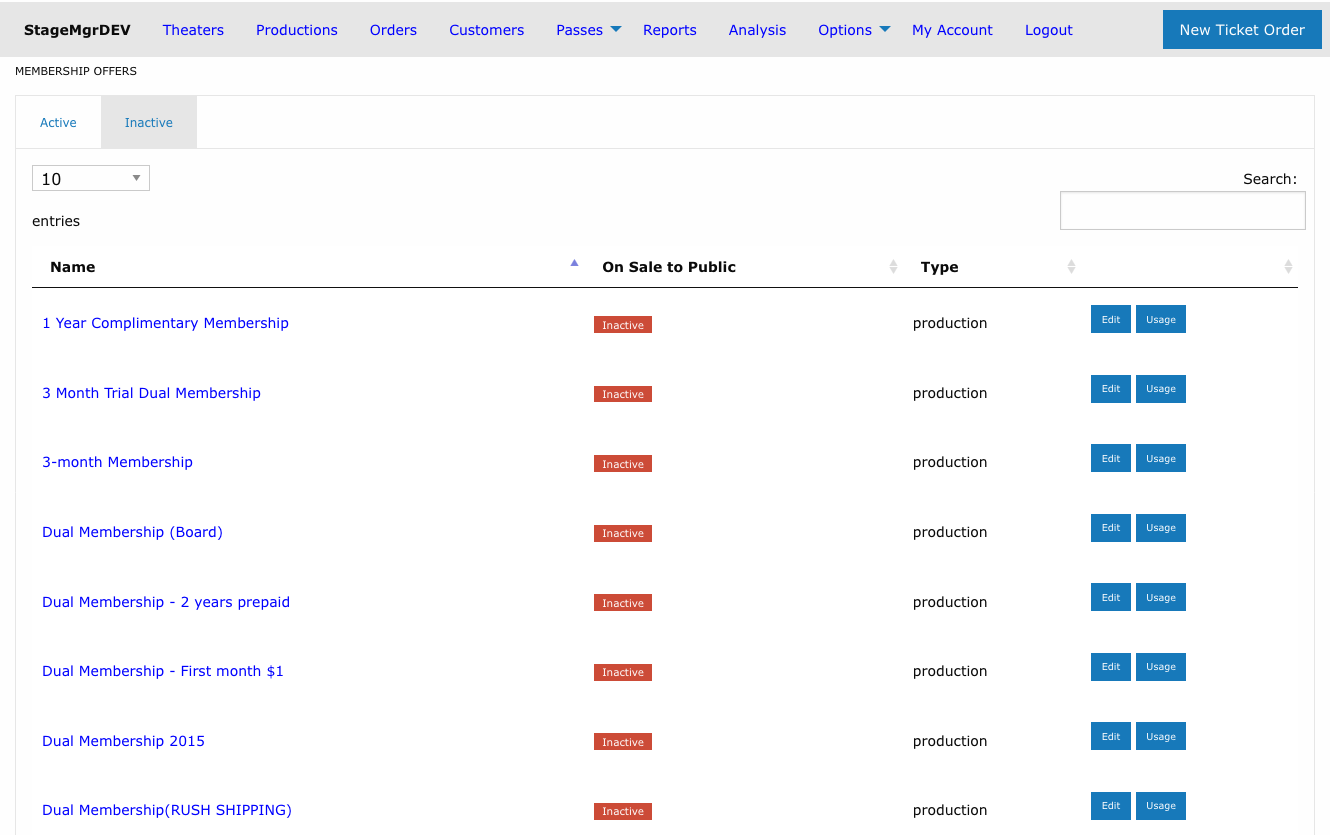
Active and Inactive Tabs
The offers list is divided into two tabs:
| Tab | Shows |
|---|---|
| Active | Offers with Active status -- the memberships patrons can currently purchase or be issued. This tab opens by default. |
| Inactive | Offers with Inactive status, kept for reference or later reactivation. |
Each tab has its own search box, column sorting, and paging, so you can filter one list without affecting the other. The searches and sort order you set are remembered separately per tab, and the tab you last viewed stays selected when you return to the page during the same browser session.
Filtering by Active Members
The Active tab has a filter above its search box:
| Button | Shows |
|---|---|
| All | Every active offer (the default). |
| Active members | Offers that at least one membership with Active status still belongs to. |
| No active members | Offers with no Active memberships -- candidates to retire. |
Canceled, Suspended, Pending and Expired memberships do not count. The filter works together with the search box, and your choice is remembered with the tab's other settings.
Row Actions
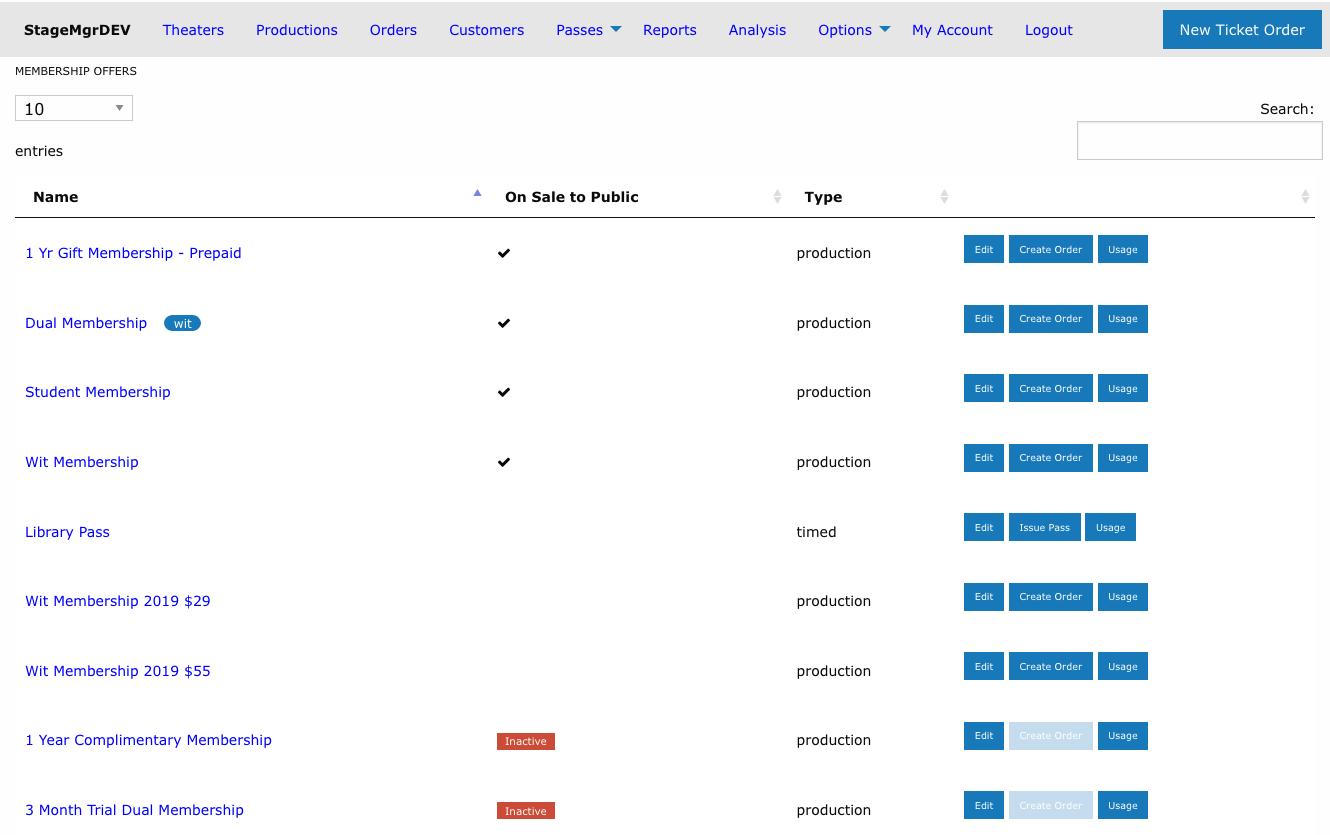
Each row on the Active tab has an actions column with three buttons; the last one is the offer's primary sales action and depends on its type:
| Button | What it does |
|---|---|
| Edit | Opens the offer's edit form. |
| Usage | Opens the Membership Usage report for this offer alone, covering its entire history. |
| Create Order | (Production offers) Starts a new membership order for this offer. |
| Issue Pass | (Timed offers) Creates a staff-issued membership directly, with no purchase order -- the library pass workflow. |
Each active offer shows exactly one of Create Order or Issue Pass. Rows on the Inactive tab show only Edit and Usage -- inactive offers cannot be sold or issued, so no sales action appears.
The Type column shows a blue Prepaid label next to offers whose Stripe price is a one-time price -- prepaid, fixed-term memberships (see One-time memberships). Offers without it are subscriptions.
The On Sale to Public column shows a checkmark when the offer is publicly purchasable. Offers on the Inactive tab show a red Inactive label in this column instead.
Usage over the offer's full history
The Usage button runs the report from the offer's first membership payment through the end of last month -- you don't need to pick a date range. See Membership Reports for what the per-offer report contains.
The Offer Detail Page
Clicking an offer's name opens its detail page.
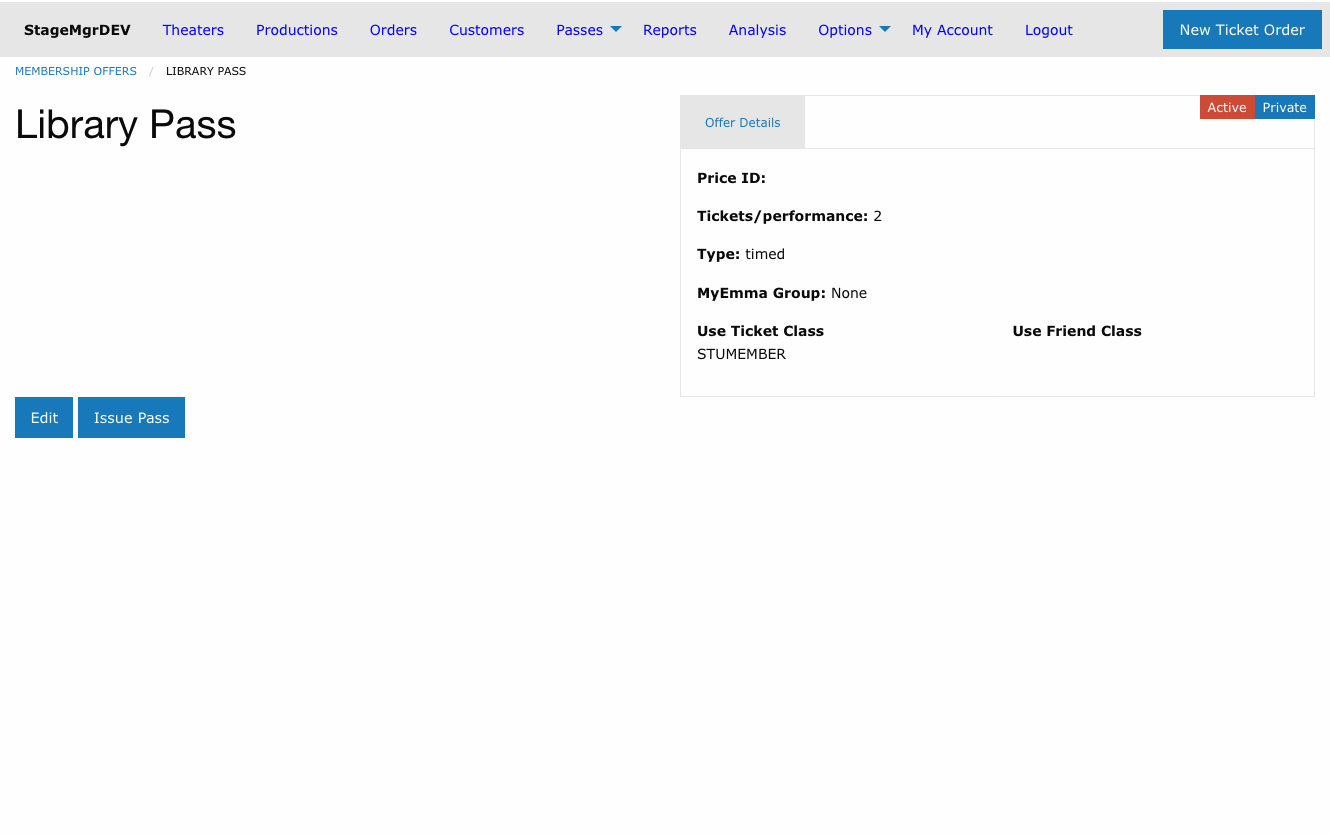
- The offer name appears as a heading above the offer's public description.
- The Offer Details panel summarizes the Price ID and its Billing period, tickets per performance, type, MyEmma group (when MyEmma is enabled), and ticket classes; a Notification tab shows the confirmation email content when one is configured.
- Status labels in the top-right corner show whether the offer is Active/Inactive and On Sale/Private, plus Prepaid for a prepaid offer. For a prepaid offer the panel also gives its term, for example 12 months term, paid once; does not renew.
- Below the description sit Edit and the offer's primary sales action: Create Order for production offers or Issue Pass for timed offers. Unlike the list -- where inactive offers show no sales action at all -- the detail page always shows the button, greyed out and disabled while the offer is Inactive.
Managing Memberships
Individual membership records (who holds each membership, its status, start, and end) are managed on the Memberships list under Passes > Memberships.
- Deactivate an offer by setting Status to
Inactive. It moves to the Inactive tab, and existing members continue their subscriptions until cancelled. - Remove from public sale by unchecking On Sale while keeping the offer active for box office staff.
- Changes to an offer do not retroactively affect existing subscribers.
Cancellation is handled through the payment processor
To cancel an individual member's subscription, the cancellation must be processed through Stripe. Changing the offer status to Inactive only prevents new sign-ups.
A one-time membership has no subscription to cancel. To end one early, set its status
to Canceled on the membership's edit form. Refund the payment in Stripe if the
patron is owed money.