Order Search
Role: All Staff
Finding orders quickly is a core box office task. Stagemgr provides search and filtering tools to locate any order in the system.
Navigation: Stagemgr > Orders > Ticket Orders (or Donation Orders, Flex Pass Orders, Membership Orders)
Overview
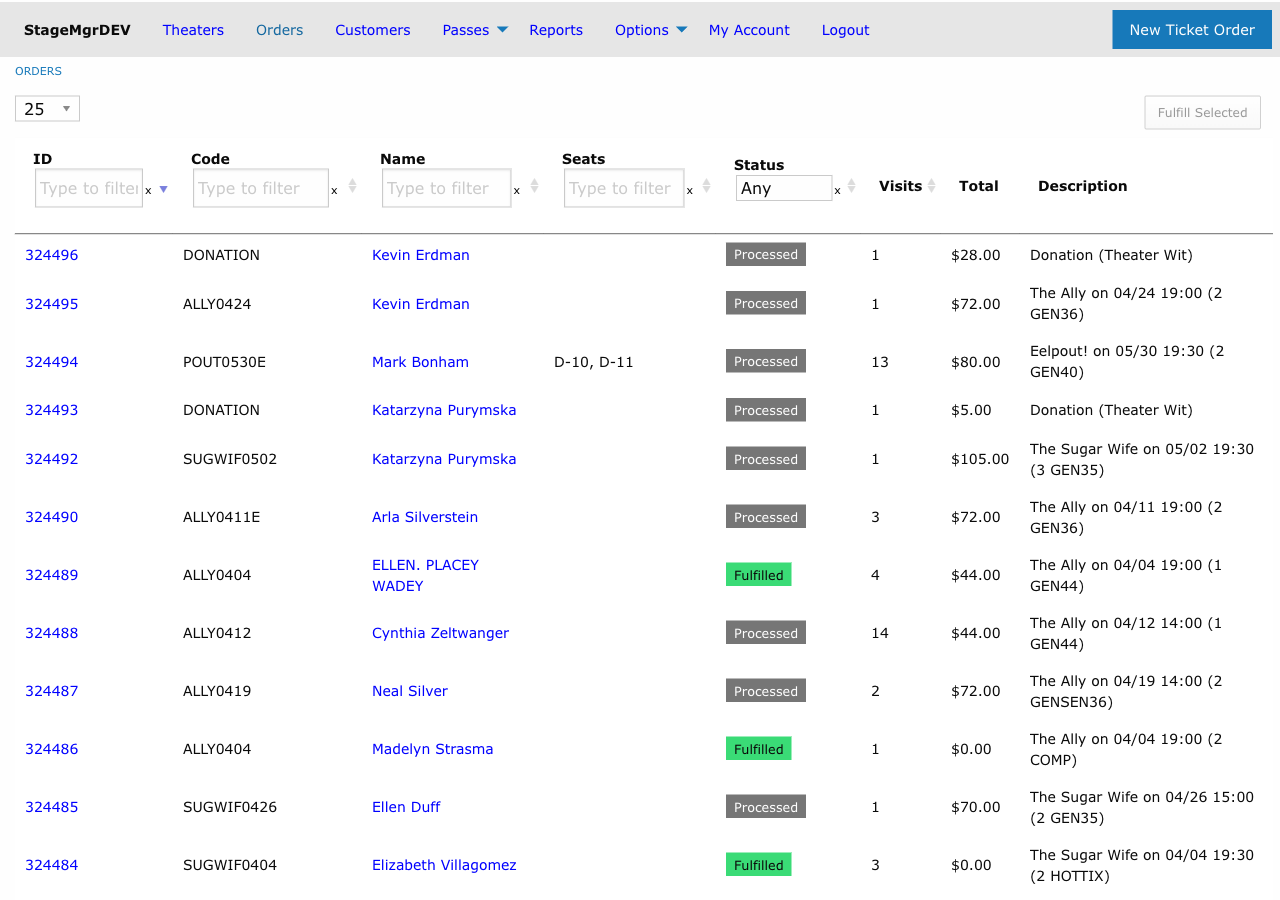
The orders list page displays all orders in a searchable, sortable data table. You can filter by status, search across multiple fields, and navigate through results to find any order in the system.
Accessing the Orders List
From the main navigation menu:
- Click Orders
- Select the order type:
- Ticket Orders -- Standard ticket purchases, holds, and exchanges
- Donation Orders -- Charitable donations
- Flex Pass Orders -- Flex pass purchases
- Membership Orders -- Membership purchases
Each order type has its own list page with appropriate columns and filters.
Search Fields
The search bar at the top of the orders list searches across multiple columns simultaneously:
| Search Field | Description | Example |
|---|---|---|
| Order ID | The unique numeric identifier for the order | 12345 |
| Display Code | The human-readable order code | TW-2026-00123 |
| Last Name | Patron's last name from the address record | Smith |
| First Name | Patron's first name from the address record | Jane |
| Status | Current order status | Processed |
Type your search term into the search box and results filter in real time as you type.
Search Tips
- Search is case-insensitive
- Partial matches work -- typing "Smi" will match "Smith" and "Smithson"
- You can search by any of the searchable fields; the system checks all of them
Status Filters
Many order list pages include status filter options to narrow results:
| Filter | Shows Orders In |
|---|---|
| All | Every order regardless of status |
| Active | Processed, Fulfilled (orders currently valid) |
| Held | Hold status only |
| Completed | Processed, Fulfilled, Unclaimed |
| Closed | Refunded, Exchanged, Canceled, Split |
Select a filter to show only orders matching that status group.
Data Table Navigation
The orders list uses a paginated data table with the following features:
Sorting
- Click any column header to sort by that column
- Click again to reverse the sort order
- A sort indicator arrow shows the current sort column and direction
- Default sort is typically by order ID (newest first)
Pagination
| Control | Function |
|---|---|
| Previous / Next | Navigate between pages |
| Page numbers | Jump to a specific page |
| Entries per page | Select how many orders to display per page (10, 25, 50, 100) |
Column Information
The ticket orders table typically displays:
| Column | Description |
|---|---|
| ID | Unique order identifier (clickable to open order detail) |
| Code | Performance code (ticket orders) |
| Name | Patron's name from the address record |
| Seats | Seat locations (reserved seating) |
| Status | Current order status |
| Visits | Number of the patron's current (attending) ticket orders |
| Total | Amount paid |
| Description | What the order is for, followed by the date it was placed -- for example Muses on 09/20 14:30 (2 COMP), placed 09/19 |
Finding a Specific Order
By Order ID or Display Code
If you have the order number:
- Enter the ID or display code in the search box
- The matching order appears immediately
- Click to open the order detail page
By Patron Name
If you know the patron's name:
- Enter the last name (or first name) in the search box
- Results show all orders for matching patrons
- Scan the results for the correct performance and date
By Status
To find all orders in a specific state:
- Use the status filter dropdown
- Select the desired status
- Optionally combine with a name search to narrow results
Will-Call Lookup
For will-call scenarios:
- Search by the patron's last name
- Filter to Active orders (Processed, Fulfilled)
- Verify the performance matches tonight's show
- Open the order to fulfill it
Will-Call Speed
For busy will-call periods, pre-sort the list by last name and use the search field for quick lookups. Having the patron spell their last name speeds up the process.
Navigating to Order Details
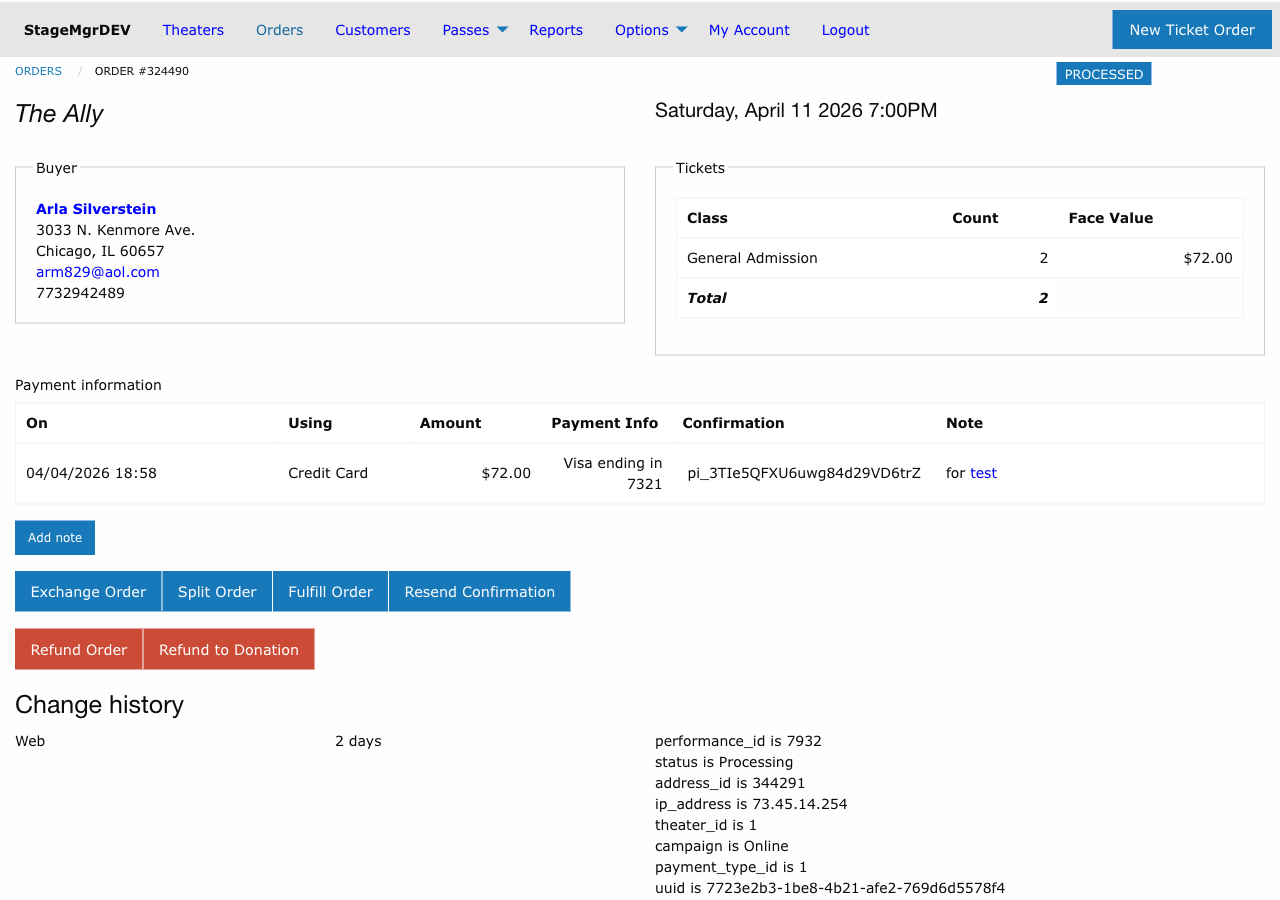
Click on any order row or the order ID to open the full order detail page. From the detail page you can:
- View all order information (patron, tickets, payment, notes)
- Perform actions (fulfill, exchange, refund, split, cancel)
- View order history and audit trail
- Access related orders (exchange source, split source)
Best Practices
- Use specific searches -- Enter the most unique identifier you have (order ID is fastest)
- Combine search with filters -- Narrow large result sets by applying status filters before searching
- Check the right order type -- Make sure you are on the correct order list (ticket, donation, flex pass, or membership)
- Verify before acting -- Always confirm the patron name, performance, and status before performing any action on an order
Troubleshooting
| Issue | Resolution |
|---|---|
| Cannot find an order | Try searching by different fields (ID, name, display code). Check all order types. |
| Too many results | Apply a status filter to narrow the list. Use a more specific search term. |
| Order shows unexpected status | Review the order history on the detail page to see what actions were taken. |
| Search returns no results | Verify spelling. Try partial name matches. Check if the order was created under a different name. |