Duplicating Special Offers
Access
Box Office Managers and Marketing Staff can duplicate special offers.
Navigation: Options > Special Offers > Edit an offer > Clone as New Offer
Overview
The Clone feature creates a new unsaved special offer pre-populated with all settings from an existing one -- except the code, which must be unique and must be entered before saving. This is the fastest way to create a series of similar offers (e.g., the same discount applied to multiple productions, or the same promo code structure for multiple seasons).
How to Clone a Special Offer
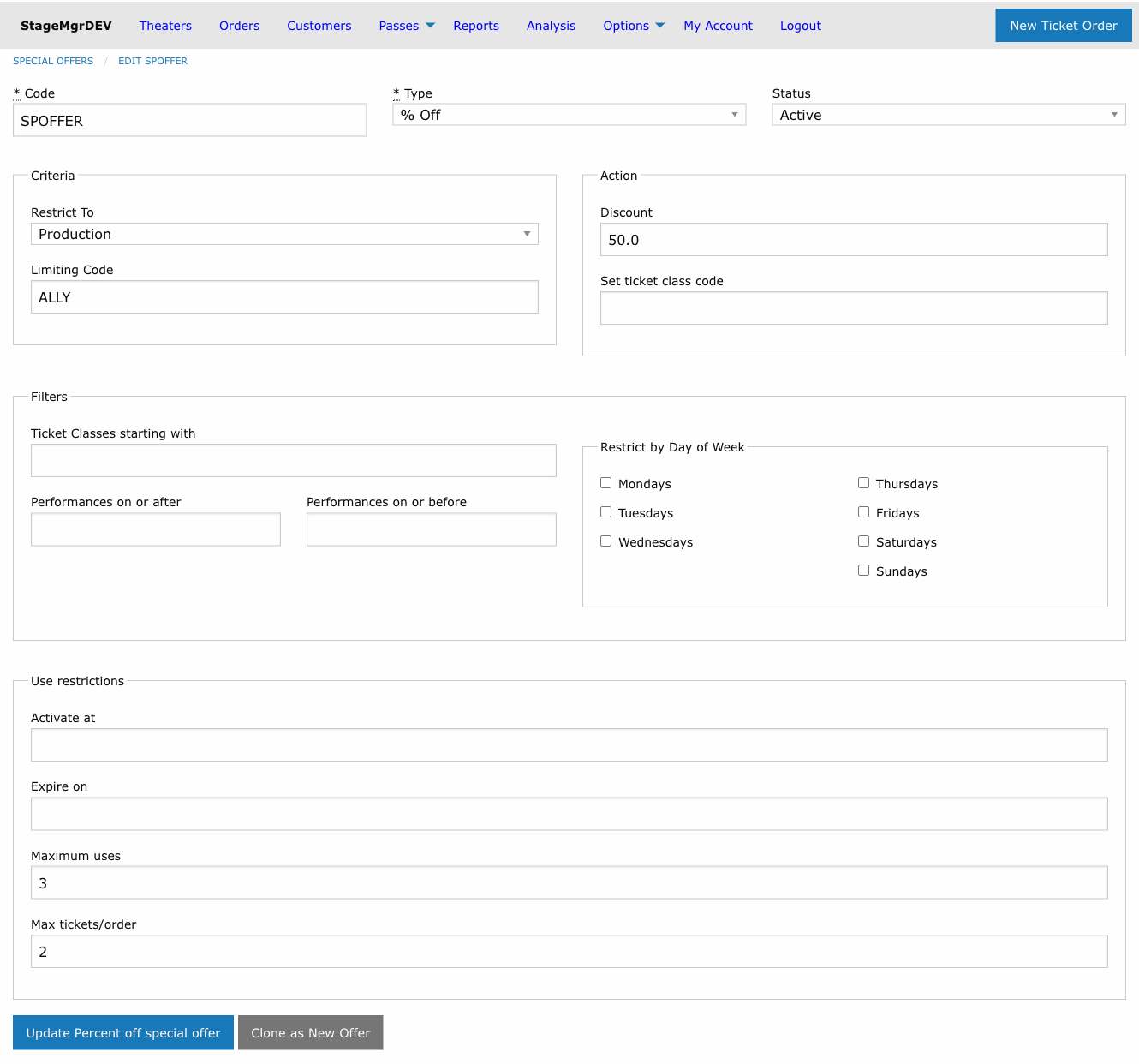
- Navigate to Options > Special Offers
- Click Edit on the offer you want to clone
- Make any changes to the original offer if needed
- Click Clone as New Offer at the bottom of the form
Changes are saved first
Clicking Clone as New Offer saves any edits you have made to the original offer before creating the copy. You do not need to click Update separately.
The new offer form opens pre-populated with all settings from the original:
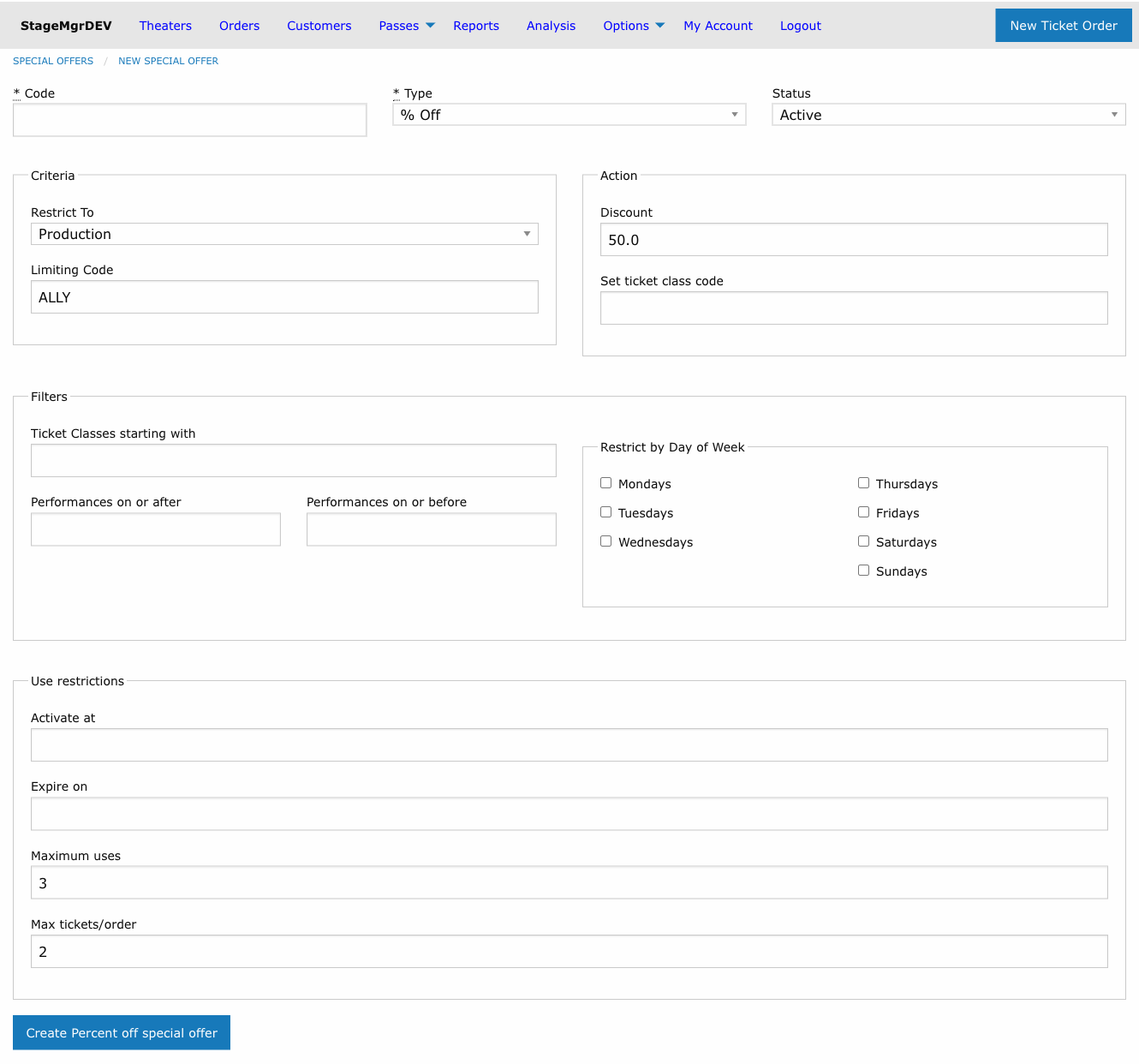
- Enter a unique Code for the new offer
- Adjust any fields that should differ from the original (e.g., scope, discount amount, expiration)
- Click Create [type] special offer to save
What Gets Copied
All fields from the original offer are copied to the new one:
| Copied | Details |
|---|---|
| Type | $ Off, % Off, or TktClass |
| Status | Active, Inactive, or Expired |
| Scope | Restrict To (Theater, Production, or Performance) and Limiting Code |
| Discount / Class | Amount, percentage, or target ticket class code |
| Ticket Class filter | Ticket class code prefix restriction |
| Performance date range | Start and end range filters |
| Day-of-week restrictions | All checked days carry over |
| Use restrictions | Auto Start, Auto Expire, Maximum Uses, Max Tickets/Order |
What Does Not Get Copied
| Not Copied | Reason |
|---|---|
| Code | Codes must be unique -- you must supply a new one |
| Usage history | The clone starts with zero redemptions |
Common Use Cases
| Scenario | Approach |
|---|---|
| Same discount for a new production | Clone the existing production-scoped offer, update the Limiting Code to the new production |
| Seasonal variant with a different code | Clone last season's offer, enter the new code, adjust Auto Start/Expire dates |
| Same offer with a tighter usage limit | Clone, enter a new code, reduce the Maximum Uses value |
| Testing a discount at a different percentage | Clone, enter a test code, change the Amount field |
The clone is not saved until you submit
After clicking Clone as New Offer, you are on an unsaved new offer form. Nothing is created in the database until you enter a code and click Create [type] special offer. If you navigate away, the clone is discarded.