Membership Orders
Role: Box Office Staff, Administrators
Memberships provide patrons with ongoing ticket benefits, including preferred seating and recurring visit privileges. This page covers creating, managing, and using memberships.
Navigation: Stagemgr > Orders > Membership Orders > New Membership Order
Overview
A membership order creates a patron membership that entitles the member to ticket benefits over a defined period. Members receive a unique member code, can set seating preferences, and redeem their membership for tickets across multiple productions.
Creating a Membership Order
Step 1: Customer Lookup
- In the Address section, begin typing the patron's name
- Select the matching record or enter new patron details
Step 2: Membership Details
Configure the membership on the order form:
| Field | Description |
|---|---|
| Membership Type | The membership tier or plan being purchased |
| Preferred Seating | The member's seating preference (see table below) |
Step 3: Payment
Process payment for the membership using any standard payment method:
- Credit card
- Cash
- Check
- External payment
See Payment Processing for details.
Step 4: Submit
- Review the order details
- Submit the membership order
- The order is created with status Processed
- A Membership record is created with a unique member code
The Member Code
When a membership order is processed, the system generates a unique member code:
| Property | Description |
|---|---|
| Format | TW-XXXXXX (TW prefix followed by 6 characters) |
| Example | TW-A8K3P2 |
| Uniqueness | Each code is unique across the system |
Provide the member code to the patron. They will use it when redeeming tickets.
Preferred Seating Options
Members can select a seating preference that guides seat assignment when using their membership:
| Preference | Description |
|---|---|
| Best Available | System assigns the best available seats (default) |
| Front Row | Preference for front row or near-front seating |
| Towards Rear | Preference for rear or mid-rear seating |
| On Aisle | Preference for aisle seats |
| Wheelchair | Requires wheelchair-accessible seating |
| Stairs | Prefers seating without stair access required |
Seating Preferences
Seating preferences are used as a guideline when assigning seats. They do not guarantee specific seats but inform the box office staff of the member's wishes when creating ticket orders.
Redeeming a Membership
Members redeem their membership during ticket order creation:
- Create a new ticket order (see Creating a Ticket Order: GA or Reserved Seating)
- Fill in the patron information and select the performance
- Choose tickets/seats
- In the Payment section, select Membership as the payment type
- Enter the Member Code (TW-XXXXXX)
- The system validates the membership
- If valid, submit the order
Membership Validation
The system checks the following during redemption:
| Validation | Rule |
|---|---|
| Code valid | The member code exists in the system |
| Membership active | The membership has not been canceled |
| Tickets per performance | Together with the membership's seats on the member's other orders for the performance, does not exceed the allowed tickets per performance |
| Per-production frequency | Does not exceed the allowed visits per production |
Usage Limits
Memberships have limits on how many tickets can be redeemed per performance and how many times a member can attend the same production. The system enforces these limits automatically.
Managing Memberships
Viewing Membership Details
- Navigate to the membership order
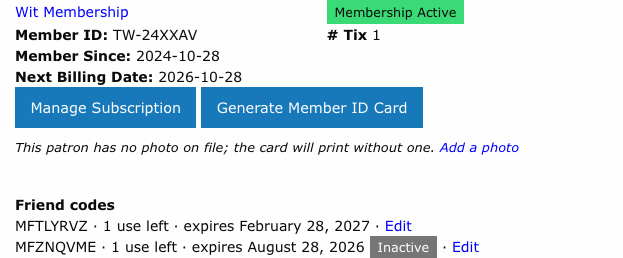
- The order detail page displays the membership record with:
- Member code
- Active status
- Preferred seating
- Usage history
- Friend codes the membership has earned, with uses left, expiry and an Edit link (see Membership Offers -- Finding and Restoring a Friend Code)
Updating Seating Preferences
To change a member's seating preference:
- Navigate to the membership order or membership record
- Select Update Seating, choose the new preference, and save
The new preference applies to future ticket redemptions only.
Fulfilling a Membership
To mark a membership as fulfilled:
- Navigate to the membership order
- Click Fulfill
- The order status changes to Fulfilled
This indicates the membership welcome materials have been delivered and the membership is fully active.
Canceling a Membership
To cancel an active membership:
- Navigate to the membership order or membership record
- Click Cancel
- Confirm the cancellation
- The membership is deactivated and can no longer be redeemed
Cancellation Impact
Canceling a membership prevents future redemptions. Ticket orders already created using the membership are not affected.
Reactivating a Membership
If a canceled membership needs to be restored:
- Navigate to the membership record
- Click Reactivate
- The membership becomes active again and can be used for future redemptions
Membership and Order Lifecycle
| Event | Effect on Membership |
|---|---|
| Membership order created | Membership record created, active |
| Ticket order redeemed | Usage count updated |
| Ticket order refunded | Usage count restored |
| Membership canceled | Cannot be used for new redemptions |
| Membership reactivated | Can be used for new redemptions again |
Membership Restrictions
Orders paid with a membership have certain restrictions:
| Restriction | Details |
|---|---|
| Cannot split | Orders paid with membership cannot be split |
| Cannot convert to donation | Refund to Donation is not available for membership-paid orders |
| Usage limits enforced | System enforces per-performance and per-production limits |
Troubleshooting
| Issue | Resolution |
|---|---|
| Member code not recognized | Verify the code format (TW-XXXXXX) and check for typos |
| Membership is inactive | Check if it was canceled; reactivate if appropriate |
| "Tickets per performance exceeded" | Member has redeemed the maximum tickets for this performance, on this order or earlier ones. Extra seats can be added paid by card with Add to Order. |
| "Production visit limit reached" | Member has attended this production the maximum allowed times |
| Seating preference change needed | Use the Update Seating action on the membership record |
| Membership canceled by mistake | Use the Reactivate action to restore it |