Donation Orders
Role: Box Office Staff, Administrators
Donation orders record charitable contributions to the theater. They can be created directly or generated automatically through the Refund to Donation process.
Navigation: Stagemgr > Orders > Donation Orders > New Donation Order
Overview
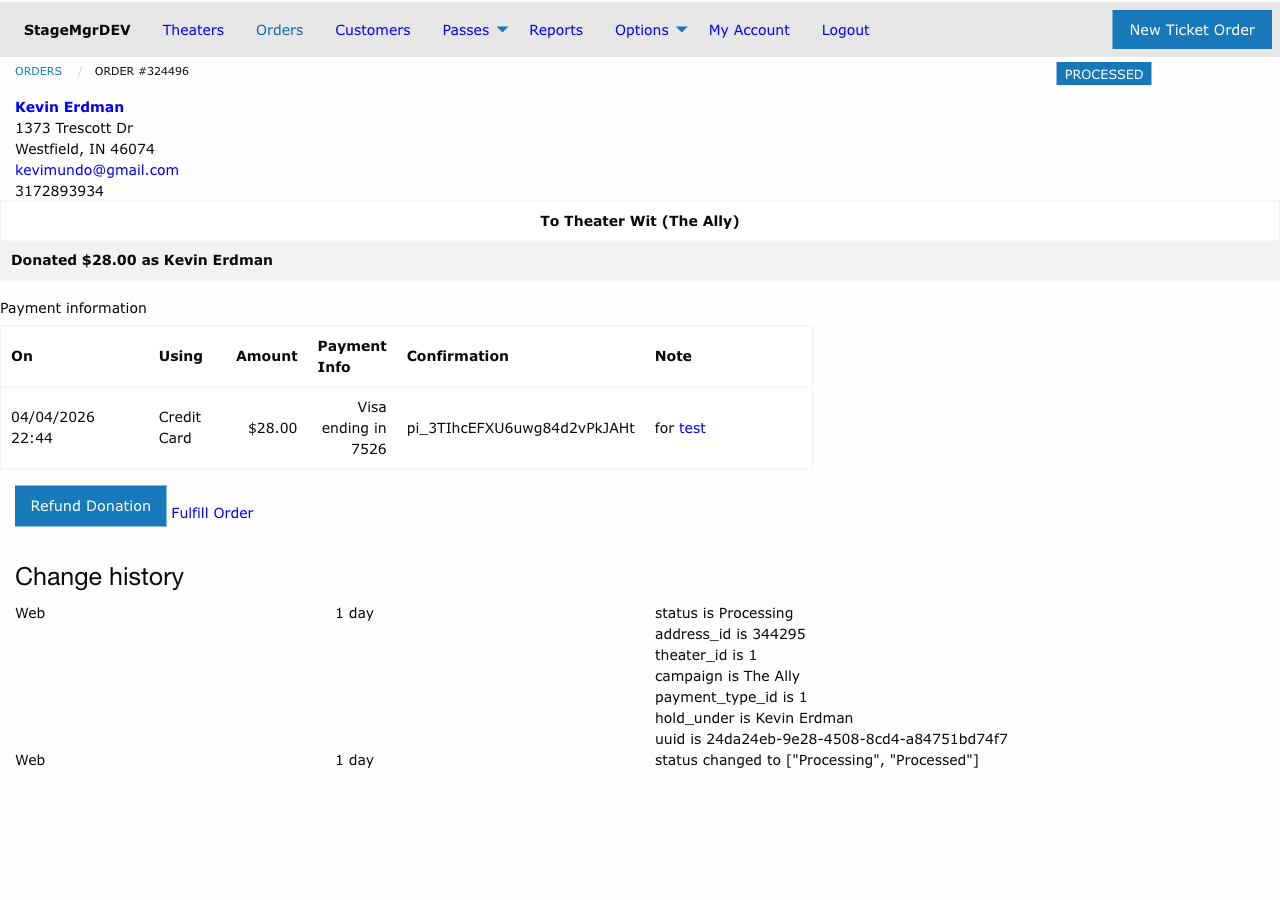
A donation order records a patron's financial contribution to the theater. Unlike ticket orders, donation orders do not reserve seats or have associated performances. They track the donor, amount, campaign, and payment information for financial reporting and tax receipt generation.
Prerequisites
Donation orders can only be created for theaters that are marked as 501(c)(3) organizations in the system. This designation enables the theater to accept tax-deductible donations.
Creating a Donation Order
Step 1: Customer Lookup
- In the Address section, begin typing the donor's name
- Select the matching record from the autocomplete, or enter new patron details
| Field | Required | Description |
|---|---|---|
| Full Name | Yes | Donor's full name (for the receipt) |
| Yes | Email address for the donation receipt | |
| Line 1 | No | Street address |
| Line 2 | No | Apartment, suite, etc. |
| City | No | City |
| State | No | State |
| Zipcode | No | ZIP code |
| Phone | No | Phone number |
Complete Address
For donation orders, collecting the full mailing address is recommended. Donors may need physical receipts for tax purposes, and the address is included on donation acknowledgment letters.
Step 2: Theater Selection
Select the theater the donation is associated with. Only theaters marked as 501(c)(3) organizations will appear as options.
Step 3: Donation Amount
Enter the donation amount in the Amount field. This is the total contribution the patron is making.
Step 4: Campaign (Optional)
The Campaign field identifies what the donation is associated with:
| Campaign Use | Example |
|---|---|
| Production-specific donation | "Romeo and Juliet 2026" |
| General fund | "General Operating Fund" |
| Capital campaign | "Building Renovation Fund" |
| Annual appeal | "2026 Annual Appeal" |
| Event-specific | "Spring Gala 2026" |
Campaign Tracking
The campaign field is used in donation reports to group and analyze contributions. Use consistent campaign names across orders for accurate reporting.
Step 5: Payment
Select the payment method and process the donation:
| Payment Type | Description |
|---|---|
| Credit Card | Process through Stripe |
| Cash | Record cash donation received at the box office |
| Check | Record check donation; note the check number |
| External | Record donations processed through external platforms |
See Payment Processing for details on each method.
Step 6: Submit
- Review all details
- Submit the donation order
- The order is created with status Processed
- A donation receipt email is sent to the donor
Donation Line Items
Each donation order contains one or more donation line items:
| Field | Description |
|---|---|
| Amount | The dollar amount of the donation |
| Campaign | The campaign the donation is attributed to |
Most donation orders have a single line item, but the system supports multiple items if a donor wishes to split their contribution across campaigns.
Donations Created via Refund to Donation
When a ticket order is converted using the Refund to Donation feature:
- A new donation order is created automatically
- The patron address is copied from the original ticket order
- The donation amount equals the original ticket order total
- The campaign is set to the production name
- The payment is transferred from the ticket order
- The original ticket order is marked as Canceled
These auto-generated donation orders appear in the donation orders list alongside manually created ones.
Fulfillment
Donation orders follow a simplified lifecycle:
| Status | Description |
|---|---|
| Processed | Donation has been recorded and receipt sent |
| Fulfilled | Donation has been fully acknowledged and recorded |
| Refunded | Donation was refunded to the donor |
To fulfill a donation order:
- Navigate to the donation order
- Click Fulfill
- The status changes to Fulfilled
Little Green Light Gift
When LGL sync is on, administrators see a Little Green Light: Gift #… line at the top of the donation order page ("not in LGL" until the gift is written), with a Send to LGL button that queues the gift again. See Refunds and the Order Page.
Donation Receipts
When a donation order is created, the system automatically sends a donation receipt email to the donor. This receipt includes:
- Donor name and address
- Donation amount
- Theater name and 501(c)(3) status
- Date of donation
- Campaign information
Tax Receipts
The automated receipt serves as the donor's record for tax deduction purposes. Ensure the patron's name and address are correct before submitting the order, as the receipt is sent immediately.
Searching for Donation Orders
Navigate to Orders > Donation Orders to view the donation orders list. You can search by:
- Donor name
- Order ID
- Campaign
- Status
See Order Search for general search guidance.
Troubleshooting
| Issue | Resolution |
|---|---|
| Cannot create a donation order | Verify the theater is marked as 501(c)(3) in the system |
| Receipt not sent | Check the donor's email address on the order |
| Wrong campaign assigned | Edit the donation order to correct the campaign field |
| Need to refund a donation | Use the Refund action on the donation order detail page |
| Donation from Refund to Donation missing | Search by the patron's name in the donation orders list |