Seat Maps
Required Role
Administrator or Box Office can create and edit seat maps. Only Administrators can delete seat maps.
Navigation: Options > Venues > [select a venue] > Seat Maps, or directly via the seat maps list
What Is a Seat Map?
A seat map defines the seating layout for a reserved-seating venue. It consists of:
- A base image showing the physical layout of the space (stage, aisles, sections)
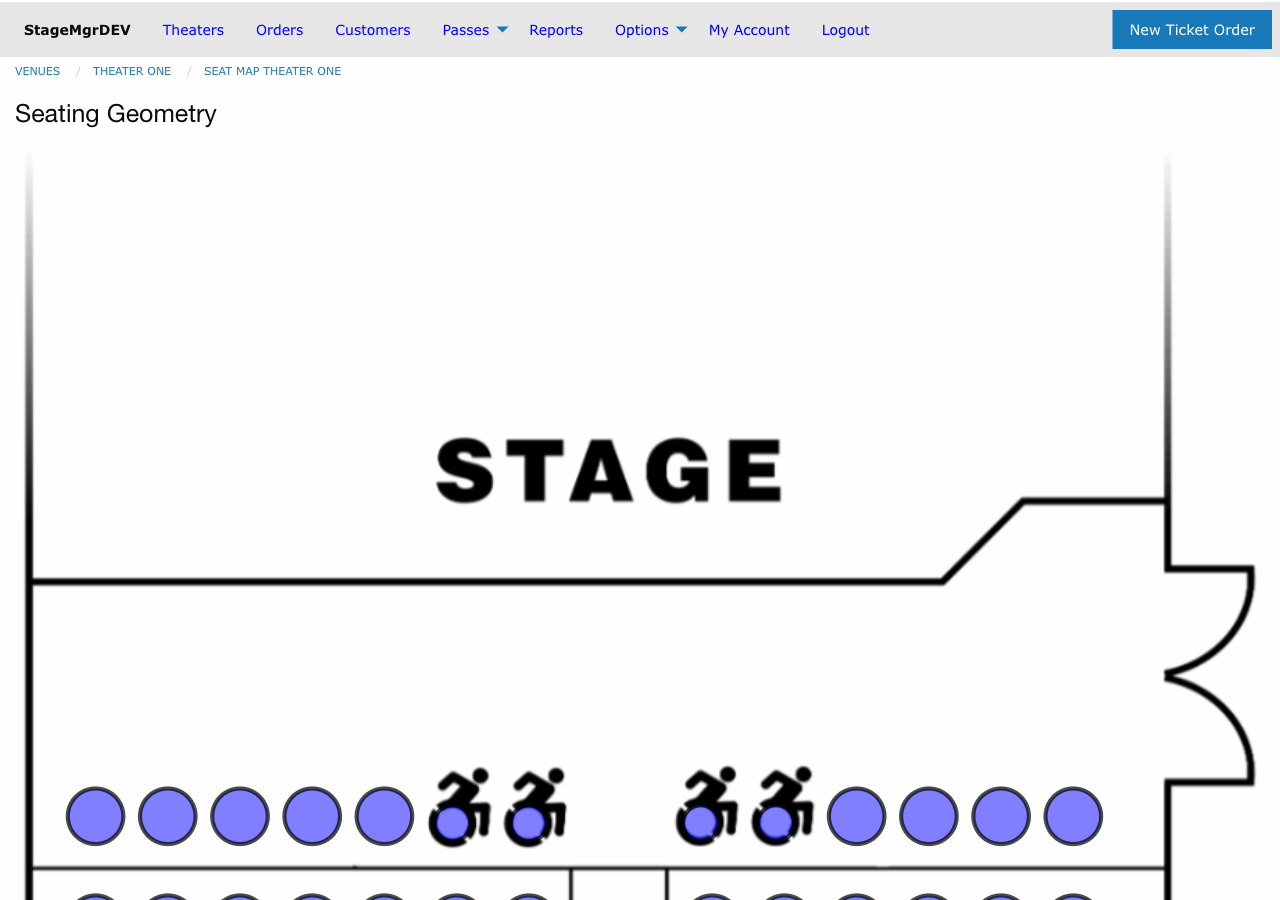
- A set of seats with row and location identifiers, positioned on the image using coordinate geometry
When a seat map is assigned to a production, that production becomes a reserved seating production -- patrons select specific seats during ticket purchase. The production's capacity is automatically set to the number of seats in the assigned seat map.
Creating a Seat Map
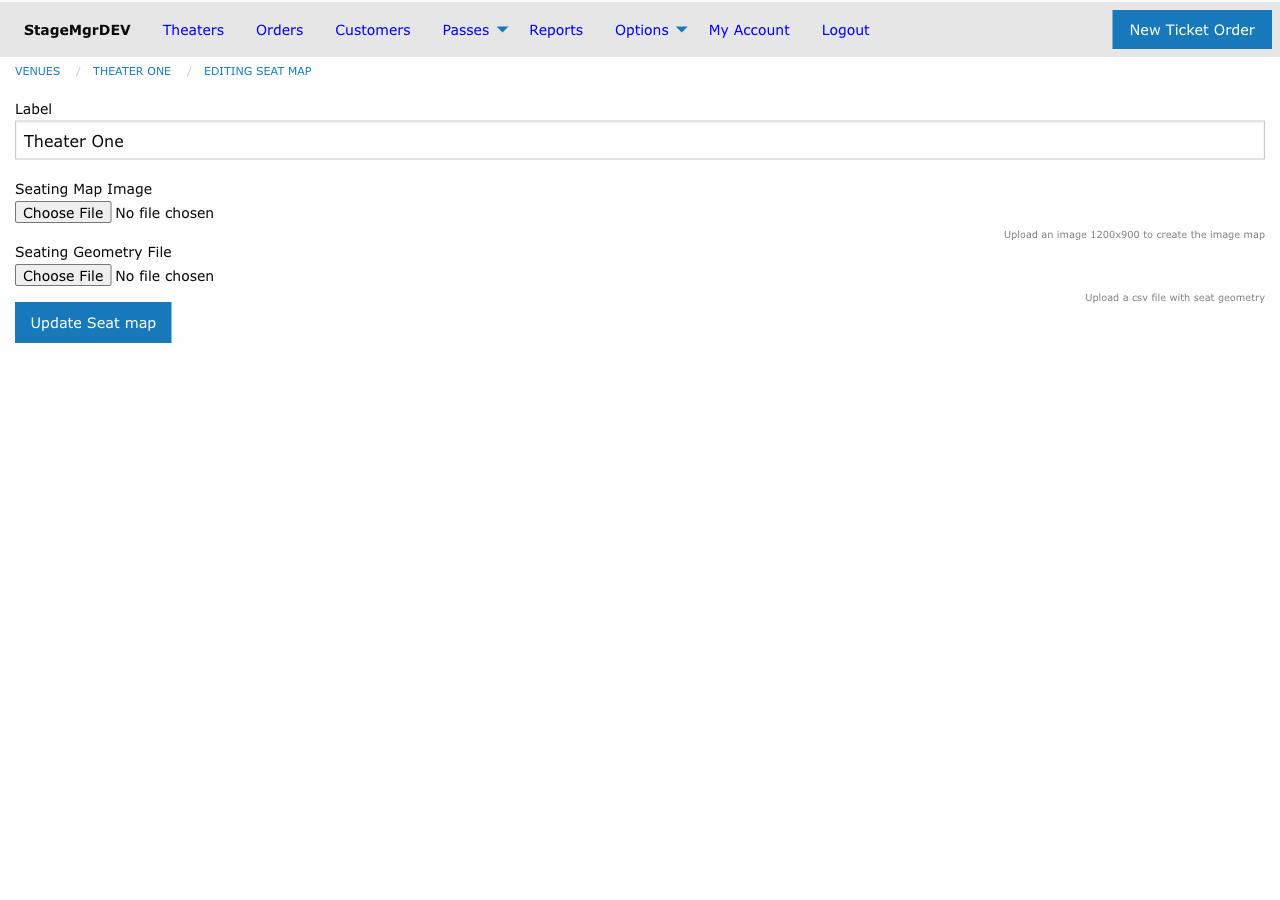
- Navigate to the seat maps list
- Click New Seat Map
- Fill in the form:
| Field | Required | Description |
|---|---|---|
| Label | Yes | A descriptive name for this seat map (e.g., "Mainstage Standard", "Studio Cabaret Layout") |
| Seating Map Image | Yes | Upload an image file (JPG, PNG, GIF) showing the venue layout. Recommended size: 1200x900 pixels. This image is displayed as the background when patrons and staff select seats. |
| Seating Geometry File | No | Upload a CSV file defining each seat's position on the image. See format below. |
| Present as zoned | No | When checked, seating displays color each seat's border by its zone. Visual only -- zone matching rules always apply. See Seat Zones and Zoned Pricing. |
- Click Create Seat Map
Seat Geometry CSV Format
The geometry CSV file defines the position and properties of each seat. Each row in the CSV creates one seat.
Required Columns
| Column | Description | Example |
|---|---|---|
location |
Unique seat identifier | A1, B12, AA3 |
row |
Row designation | A, B, AA |
sequence |
Seat number within the row | 1, 2, 12 |
Optional Columns
| Column | Description | Example |
|---|---|---|
origin-x |
X coordinate (pixels from left) for seat position on the map image | 150 |
origin-y |
Y coordinate (pixels from top) for seat position on the map image | 300 |
width |
Width of the seat marker in pixels | 20 |
height |
Height of the seat marker in pixels | 20 |
feature |
Accessibility designation -- if set, indicates the seat can be converted to wheelchair accessible | wheelchair |
zone |
Seating zone for zoned pricing (1--2 letters/digits; defaults to A). When the column is absent, re-imports leave existing zones untouched. |
B |
Example CSV
location,row,sequence,origin-x,origin-y,width,height,feature
A1,A,1,100,400,20,20,
A2,A,2,125,400,20,20,
A3,A,3,150,400,20,20,wheelchair
B1,B,1,100,430,20,20,
B2,B,2,125,430,20,20,
Seat Location
If you leave the location column blank, Stagemgr will automatically generate it by combining the row and sequence values (e.g., row A + sequence 1 = location A1). Each location must be unique within the seat map.
How Seat Maps Work
Capacity
A seat map's capacity equals the total number of seats it contains. When a production is assigned this seat map, the production's capacity is automatically set to this count -- you cannot manually override it.
Seat Inventory
When a new performance is created for a reserved-seating production, Stagemgr automatically creates a seat assignment record for every seat in the map. These assignments track which seats are available, held, or sold for each performance.
Accessible Seating
Seats with a feature value (e.g., wheelchair) are flagged as accessible. During ticket sales, box office staff can convert these seats to wheelchair-accessible seating as needed.
Updating a Seat Map
You can edit an existing seat map to:
- Change the label
- Upload a new base image (replaces the existing one)
- Upload a new geometry file (updates seat positions; adds new seats for locations not already in the map)
Warning
Uploading a new geometry file adds or updates seats but does not remove existing seats. To remove a seat, use the seat map editor. Seats that have been assigned to orders cannot be removed.
The Seat Map Editor
For day-to-day adjustments, the graphical Seat Map Editor is usually faster than re-importing a CSV. Open it from the Open Seat Map Editor button on the seat map's detail page to drag seats into position, add or delete seats, resize the markers, and paint pricing zones -- all with an explicit Save.
Deleting a Seat Map
Only Administrators can delete seat maps, and only when the seat map is not assigned to any production. If a seat map is in use, you must first remove the seat map assignment from all productions using it.
Assigning a Seat Map to a Production
Seat maps are assigned to productions during production setup:
- When creating or editing a production, select a Venue
- Once a venue is selected, the Seat Map dropdown shows all seat maps for that venue
- Select a seat map to enable reserved seating, or leave it blank for general admission
See General vs Reserved Seating for more details.