Reports Overview
Access
All users can access basic reports. Box Office and Admin users have access to additional operational and reconciliation reports. Admin-only reports are noted below.
Navigation: Admin Menu > Reports
About Reports
The Reports section provides data exports and summaries for sales analysis, customer management, financial reconciliation, and marketing. Reports are organized by permission level, so the reports you see depend on your user role.
Reports by Permission Group
| Permission Group | Reports | Roles |
|---|---|---|
| Show Reports | Production Sales By Performance, Royalty Report, Production Attendees, TRGArts Production Export, Donor export | All users |
| Box Office Reports | Daily Receipts, Print Tickets, Donation Totals, Membership Orders, FlexPass Patron Report, TRGArts Export by Performance Date, First Time Attendees (TRG) | Box Office, Admin |
| House Management | House Management Seating Report | Box Office, Admin |
| Reconciliation | FlexPass Sales, Weekly Box Office | Box Office, Admin |
| Membership | Membership Usage | Box Office, Admin |
| Customer Data Mining | Mine Customer Data | Admin only |
Selecting a Production
Production-scoped reports use the same typeahead search field found throughout Stagemgr. Type a production name, season year, production code, or theater name to see matching productions, or pick a season/theater/tag group shortcut to drill down to its shows. See Finding Productions for a full walkthrough.
Unlike the old dropdowns, report search offers every production you can access, including Inactive and Presale shows -- useful for historical reporting on shows that are no longer on sale.
Selecting Offers
The four membership and FlexPass reports -- Membership Usage, Membership Orders, FlexPass Sales, and FlexPass Patron Report -- include an optional Limit to offers picker that restricts the report to one or more offers. Leaving it empty runs the report across all offers.
Type in the picker to search:
- By offer name -- matching offers are listed individually. FlexPass offers show their theater restriction next to the name ("Only Theater Wit" / "All but Theater Wit").
- By tag -- choosing an All offers tagged ... suggestion adds every offer carrying that tag in one click. Tags are assigned on the offer forms; see Membership Offer Tags and Flex Pass Offer Tags.
- By theater (FlexPass reports only) -- typing a theater name lists that theater's offers, plus an All ... offers group that adds every offer restricted to that theater. The group does not include "All but" offers, which merely exclude the theater.
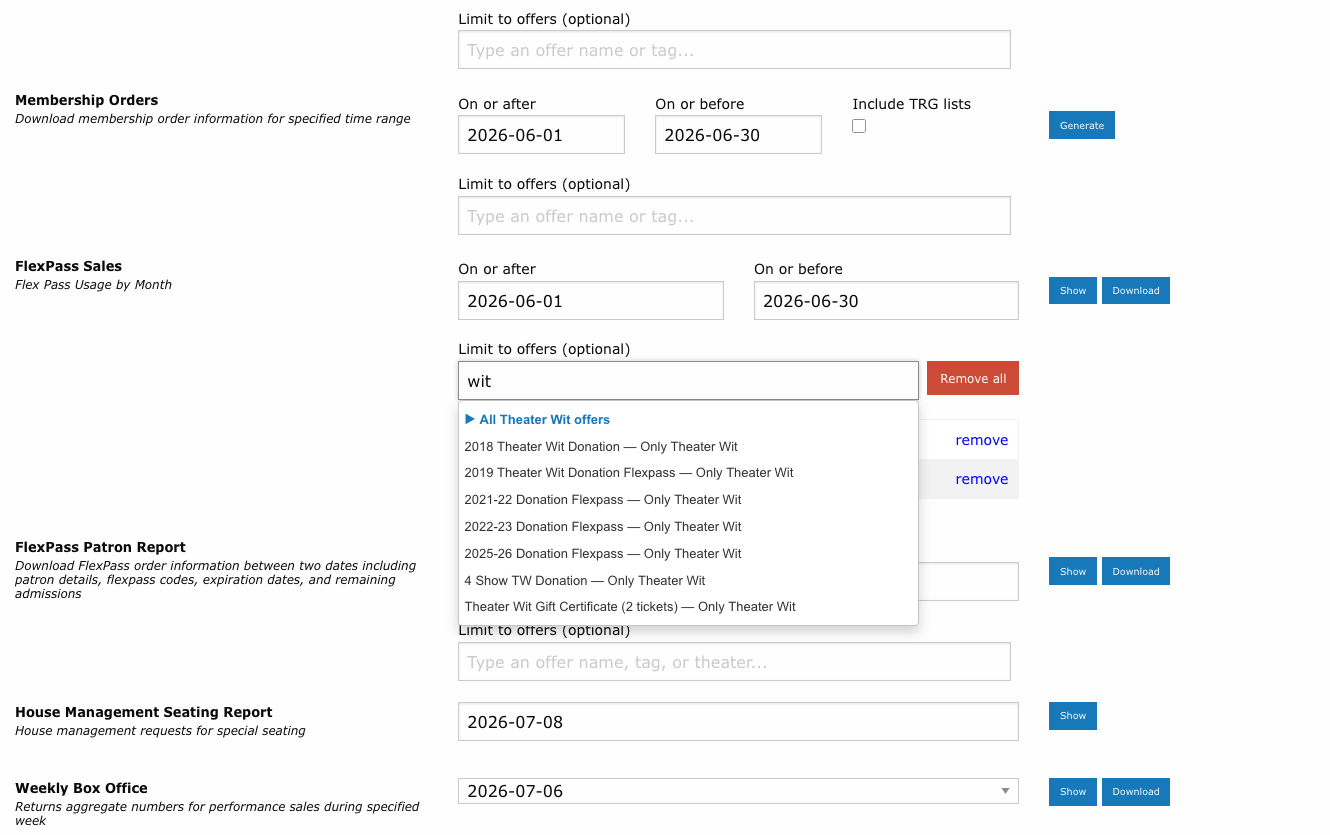
Each selection appears in a table beneath the field with its own remove link; Remove all clears the whole selection. An offer already selected is not suggested again.
Active offers only
Suggestions only include Active offers. Inactive and retired offers never appear, so a report limited by the picker reflects your current catalog.
When a report is limited, the on-screen results end with a "Limited to:" footnote listing the selected offers, so a printed or shared report is self-describing.
Report Output Types
Reports deliver results in one of three ways depending on the report and the size of the data.
Inline Display (Show)
Some reports display results directly on screen. These reports include a Show button that renders a table in the browser. You can review the data immediately without waiting for a file.
Immediate Download (Download)
Many reports that support inline display also offer a Download button. This generates a CSV file that your browser downloads immediately. The CSV can be opened in Excel or any spreadsheet application.
Background Job (Email Delivery)
Larger or more complex reports run as background jobs. When you submit one of these reports:
- The system queues the report for processing.
- You see a confirmation message that the report has been queued.
- When processing completes, the system emails you a download link.
- The generated report also appears in the Generated Reports section at the bottom of the Reports page.
Background Job Reports
The TRGArts exports (including First Time Attendees), Donor export, Membership Orders, Production Attendees, and Mine Customer Data reports all run as background jobs. Processing time depends on the size of the dataset.
Submission Feedback
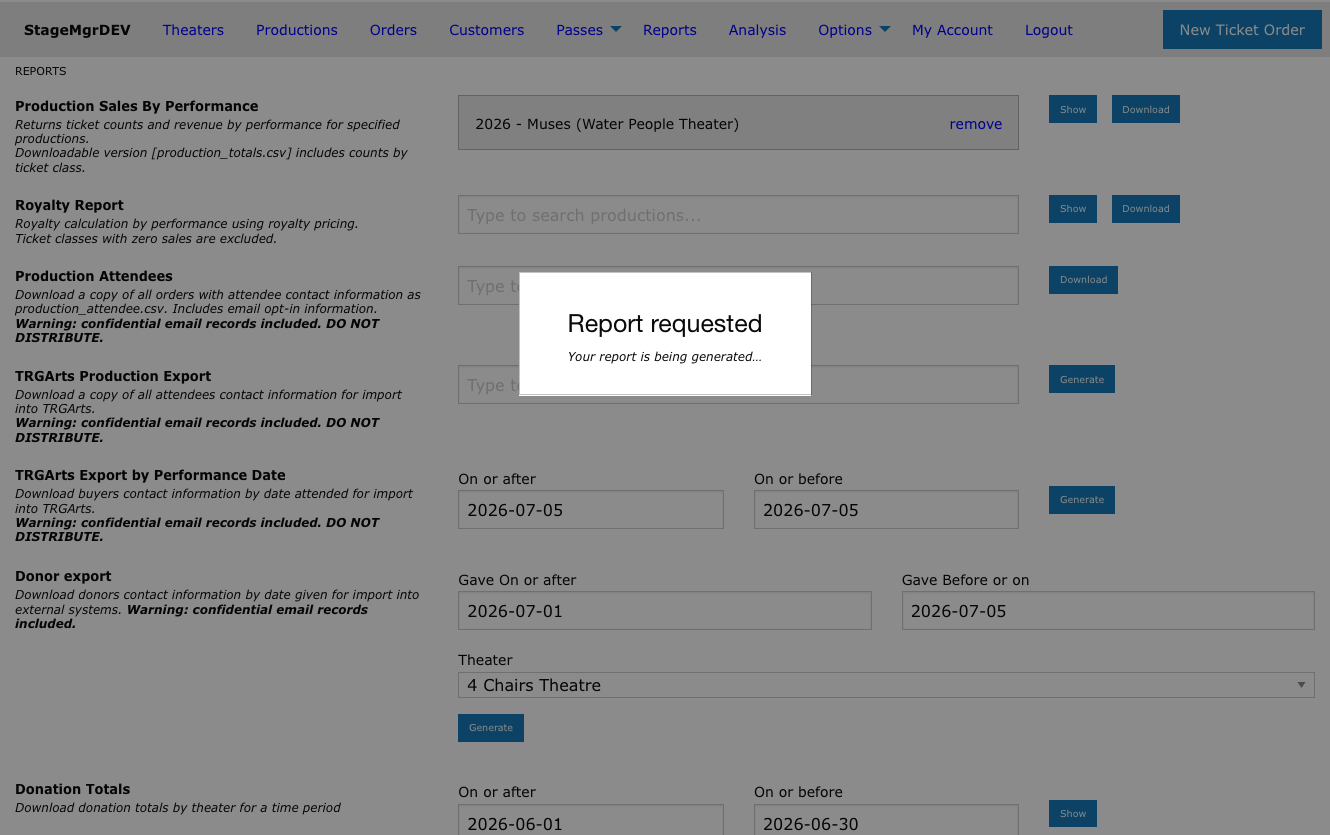
As soon as you submit any report, a "Report requested" overlay appears so you know the click registered:
- For Download and Generate buttons, the overlay dismisses itself after a couple of seconds while the file downloads or the background job is queued.
- For inline Show reports, the overlay stays up until the results page replaces it -- helpful for larger reports that take a few seconds to compute.
Generated Reports
The bottom of the Reports page displays a list of previously generated reports. Each entry shows:
- The report name
- The date it was generated
- A download link to retrieve the CSV file
Generated reports remain available for download until they are cleaned up by the system. If you need a report again after it has been removed, simply re-run it.
Common Input Fields
Most reports require you to specify a scope before generating:
| Input | Used By | Description |
|---|---|---|
| Production | Production Sales By Performance, Royalty Report, Production Attendees, TRGArts Production Export | Search for a production with the production picker |
| Date Range | Daily Receipts, Donations, Memberships, FlexPass, Weekly Box Office | Start and end dates to filter records |
| Theater | Donor export, Donation Totals | Filter by producing theater |
| Performance Date | House Management Seating Report | Select a specific performance date |
Date Range Limits
Some reports enforce maximum date ranges. Daily Receipts is limited to 31 days. Donation Totals is limited to 1 month. Exceeding these limits will display an error.
Tips
- Use Production Sales By Performance for a quick snapshot of ticket revenue by performance.
- Use Daily Receipts to reconcile daily credit card and cash transactions.
- Use Weekly Box Office for aggregate weekly reporting to management.
- For customer email lists, use Production Attendees and review the email opt-in rules carefully to understand which addresses are included.
- Mine Customer Data is the most flexible report for identifying high-value patrons across multiple theaters and date ranges.