Resource Pull Sheet
Role: House Managers, Front-of-House Staff
The Resource Pull Sheet lists every reservation of shared equipment (captioning tablets, audio-description receivers, and other resourced ticket classes) for a single performance date, so staff can pull and stage the right devices at the right venues.
Navigation: Admin > Reports > Resource Pull Sheet
What the Report Shows
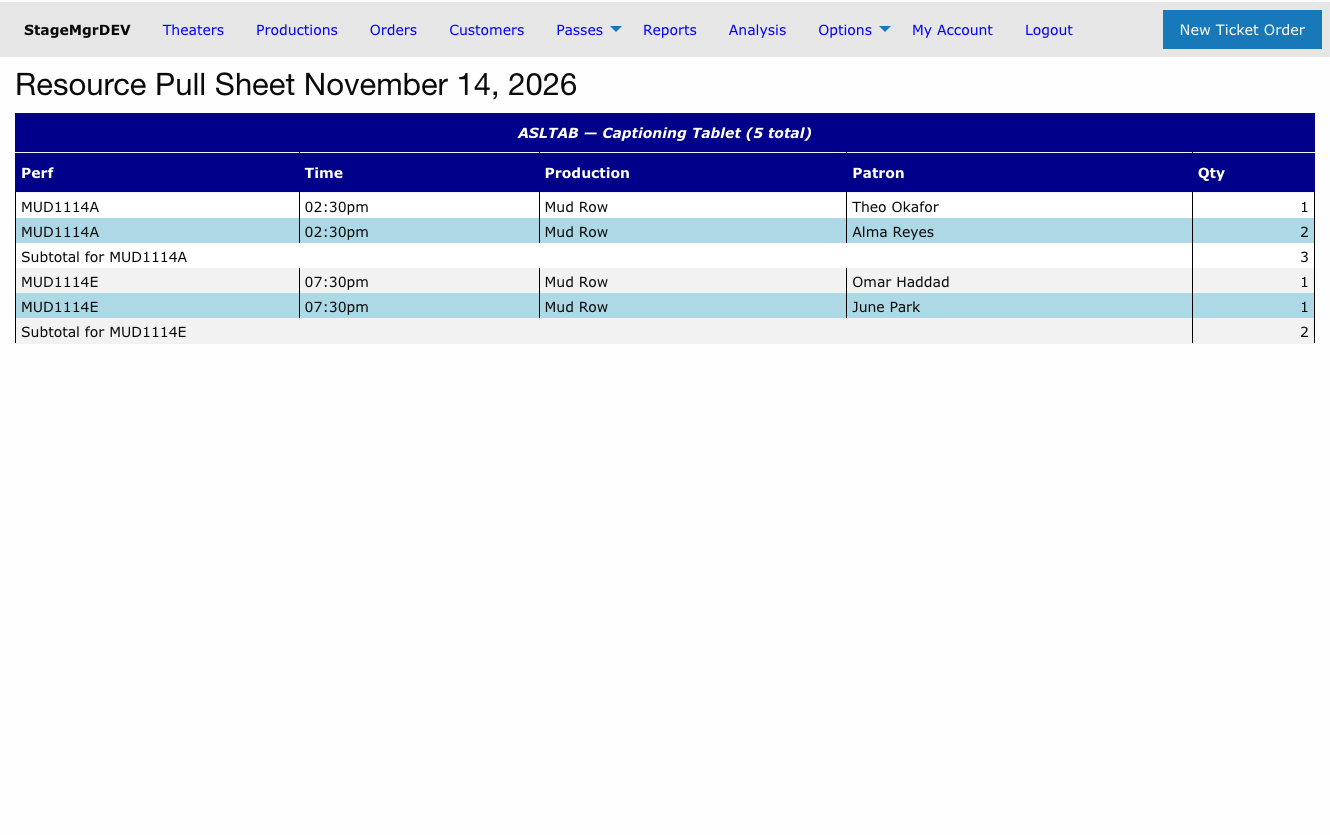
For the selected date, the report prints one section per resourced ticket class with equipment reserved that day. Within each section:
| Column | Content |
|---|---|
| Performance | The performance code and curtain time |
| Production | The production name |
| Patron | The reserving patron, sorted by last name, first name within each performance |
| Devices | The net number of devices reserved on that order (refunds are already netted out) |
Rows are grouped by performance in performance-code order, with a subtotal per performance -- the number of devices to stage at that venue -- and a total per resource for the day.
Orders count when they are live: box office holds, in-progress checkouts, processed, fulfilled, and mid-exchange orders all appear. Refunded and canceled orders do not.
Generating the Report
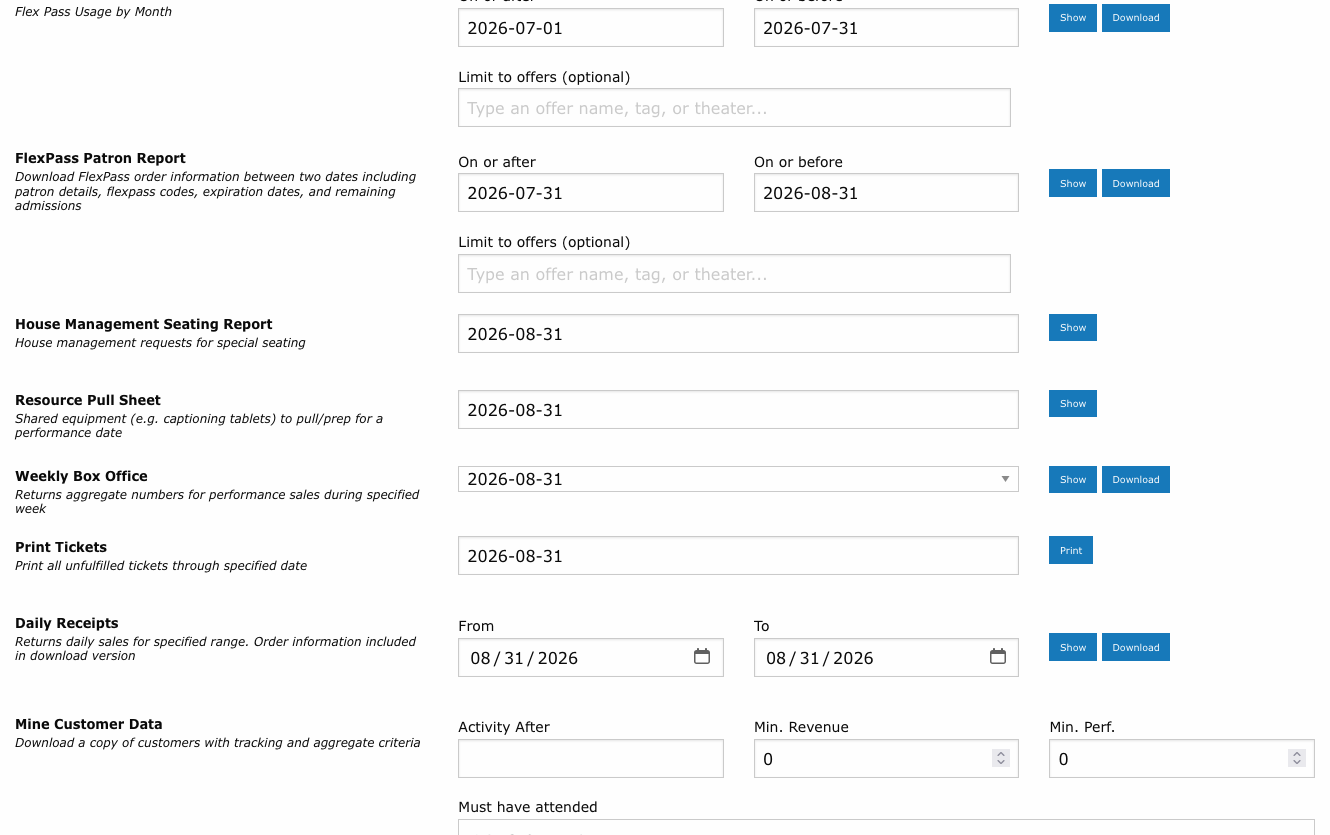
- Navigate to Admin > Reports.
- Find the Resource Pull Sheet card.
- Select the performance date.
- Click the report button to render it on screen; print as needed.
Tip
Run the pull sheet in the early afternoon before an evening of overlapping performances. The per-performance subtotals tell you how many devices to deliver to each space; the patron names let will-call hand the right equipment to the right person.
Same-day changes
The report reflects orders at the moment it is generated. If a patron books a device after you printed the sheet, the order still passes the pool check -- regenerate the sheet close to doors if same-day sales of resourced classes are common.
Related Pages
- Resourced Ticket Classes -- Setting up shared equipment pools
- House Management Report -- Seating, accessibility, and VIP overview for the same date
- Daily Operations -- Where this report fits in the day-of-show workflow