Setting Up a Theater
Required Role
Administrator or Box Office can create and edit theaters. Only Administrators can delete theaters.
Navigation: Theaters (main menu) > New theater
What Is a Theater?
In Stagemgr, a "theater" represents a producing company or organization -- not a physical building. A single Stagemgr instance manages multiple theaters that may share the same physical venue spaces. For example, you might have:
- Theater Wit (Default) -- the primary resident company
- Shattered Globe Theatre (Resident Company) -- a company with an ongoing relationship
- Old Pro Productions (Guest Artist) -- a visiting artist for one production
Each theater gets its own productions, orders, financial reporting, and staff access controls.
Creating a Theater
- Go to Theaters in the main navigation
- Click New theater at the bottom of the list
- Fill in the form fields described below
- Click Create Theater
Theater Form Fields
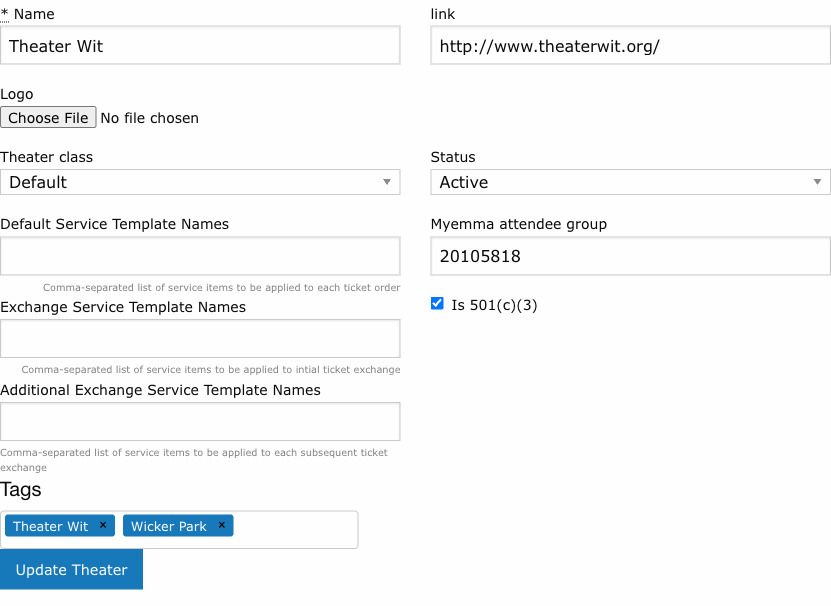
Name
The theater company's name as it will appear throughout Stagemgr -- in order records, reports, the public website, and patron communications. Must be unique across all theaters in the system.
Link
The theater company's website URL (e.g., http://www.theaterwit.org/). Used for linking back to the company's site from the public-facing pages.
Logo
An image file for the theater's logo. Used in outgoing emails for ticket and pass purchases, and on public-facing pages. Upload a square image -- it will be displayed at 250x250 and 125x125 pixels.
Accepted formats: JPG, JPEG, PNG, GIF.
Theater Class
Defines the theater's relationship to the venue and affects how its productions appear on the website:
| Class | When to Use | Website Display |
|---|---|---|
| Default | The primary organization that operates the venue | No special designation |
| Co-production | Joint production partnership with the default theater | Identified as co-production; shares customer data access with partner |
| Resident Company | A company with an ongoing venue relationship | Designated as resident company below production descriptions |
| Visiting Company | A company using the venue for a limited engagement | Designated as visiting company below production descriptions |
| Guest Artist | An individual artist or small group | Designated as guest artist below production descriptions |
Theater Class and Permissions
Theater class affects data access for Theater User accounts. Users assigned to a Resident Company theater can view all patron email addresses. Users assigned to other theater classes can only see emails for patrons who have opted into their marketing list. Co-production theaters share customer data access with the default theater.
Status
| Status | Effect |
|---|---|
| Active | Theater and its productions are visible in administrative views and (depending on production status) on the public website |
| Inactive | Theater and all its productions are removed from public view and most administrative views |
Default Service Template Names
A comma-separated list of service item template names to automatically attach to new ticket orders for this theater's productions. For example: Processing Fee, Facility Fee.
These are the default fees charged on every order. Individual productions can override these defaults.
See Service Items for how to create service item templates.
Exchange Service Template Names
A comma-separated list of service item template names to automatically attach when a patron exchanges an order for the first time. For example: Exchange Fee.
Additional Exchange Service Template Names
A comma-separated list of service item template names for subsequent exchanges (second exchange and beyond). This allows a different fee structure for repeat exchanges.
Service Item Inheritance
The fee chain works as: Service Item Templates (system-wide) > Theater defaults (set here) > Production overrides. If a production specifies its own service items, those override the theater defaults. If neither the production nor theater specifies items, the system default applies.
MyEmma Attendee Group
The numeric group ID for this theater's attendee group in the MyEmma email marketing platform. When a theater is created, Stagemgr automatically creates a corresponding MyEmma group named "[Theater Name] Attendee" if the MyEmma integration is enabled and configured.
You typically do not need to set this manually -- it is auto-populated on save.
Is 501(c)(3)
Check this box if the theater is a registered 501(c)(3) nonprofit organization. This enables donation-related features:
- The Refund to Donation option becomes available on ticket orders for this theater
- Donation orders can be created for this theater
- Donation receipts include appropriate nonprofit tax language
Default appeal
The message that asks patrons for a donation in the donation section of this theater's ticket orders. It appears above an Add a donation: $ box. Markdown is enabled, and {{theater}} is replaced with this theater's name.
Where it appears:
- Default theater: in the "I wish to offer additional support" box on its own productions' orders, and in the donation box of the flex pass checkout
- Co-production: in the "Make a donation to ..." box on the co-production's orders
- Resident company, visiting company or guest artist that is a 501(c)(3): in the "Donate to ..." box on its productions' orders
Leave it blank to use the standard wording: Yes! I love {{theater}}. Please add a tax-deductible contribution to this order.
Secondary appeal
Used only by the default theater. It is the default theater's own appeal on orders for resident company, visiting company and guest artist productions, shown in the "Make a donation to ..." box alongside that company's own appeal. Co-production orders never show it; they show the co-producing theater's default appeal instead.
Markdown is enabled. {{theater}} is replaced with the default theater's name and {{company}} with the name of the company whose production is being ordered. For example:
In addition to its own programming, {{theater}} subsidizes facilities and support for groups like {{company}}. Please add a tax-deductible contribution to this order.
Leave it blank to use the default theater's default appeal.
Tags
Tags are free-form labels you can attach to a theater to group it for analysis and reporting. Unlike Theater Class -- which is a fixed list with built-in behavior -- tags are arbitrary text you define and can change at any time. Typical uses include grouping by neighborhood, genre, partnership type, or any other attribute you want to slice by later.
A theater can have any number of tags. They appear as rounded pill labels in the Tags field on the theater form, in the Name column of the Theaters list, and at the top of the theater detail page.
Adding a tag
- Click into the Tags field on the theater form.
- Begin typing. As you type, a dropdown suggests existing tag names already used on other theaters -- click one to apply it, or keep typing to create a brand-new tag.
- Press Enter (or type a comma) to commit the tag as a pill.
- Repeat to add as many tags as you need.
- Click Update Theater to save.
Reuse existing tags when possible
The autocomplete suggestions help you converge on a consistent vocabulary -- if "Storefront" already exists, accept the suggestion rather than typing "storefront" or "store front" as a new tag. Tags are matched case-insensitively, so "Storefront" and "storefront" are treated as the same tag, with the casing of the first one preserved.
Removing a tag
Click the x on the right side of any pill to remove that tag, then save the form. The tag is removed from this theater only; it remains available on any other theater that uses it.
Where tags appear
| Location | What you see |
|---|---|
| Theater edit form | Pills inside the Tags field, with an x on each pill |
| Theaters list | Pills displayed inline after each theater's name |
| Theater detail page | Pills displayed next to the theater name heading |
Future use in analysis
Tags are not yet used as filter criteria in reports, but they are recorded with each theater so future analytical features can group or filter by tag value. Apply tags now in preparation for that work.
Viewing a Theater
Click any theater name in the Theaters list to view its details page. From here you can:
- See all productions associated with this theater
- Click Add Production to create a new production
- Click Edit to modify the theater settings
- View the theater's website link and logo
The Theaters List
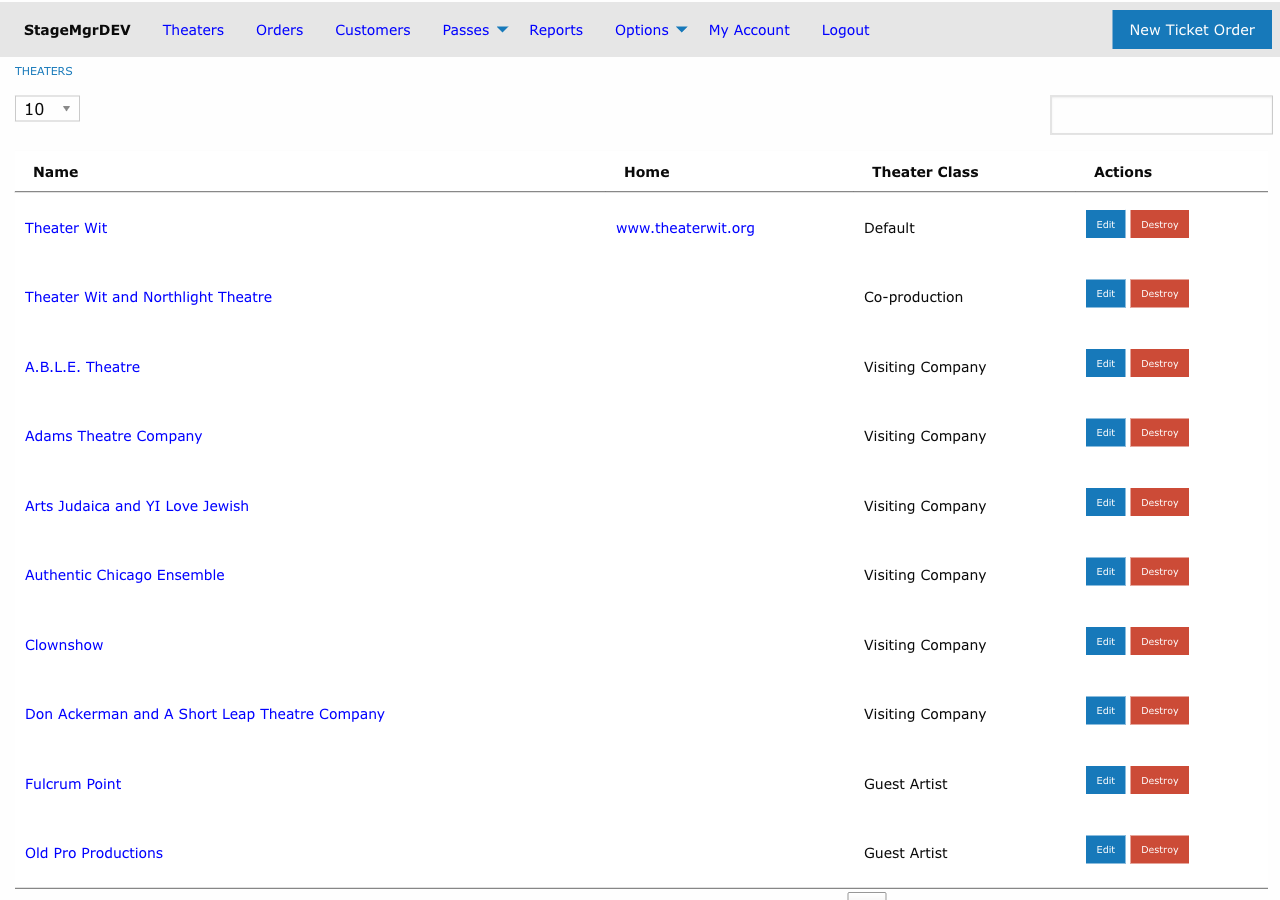
The Theaters list (Theaters menu) shows all theaters in a searchable, paginated table with columns for:
- Name -- Click to view the theater's detail page. Any Tags on the theater appear as pills next to the name.
- Home -- Link to the theater's website
- Theater Class -- Default theaters show blank; others show their class
- Actions -- Edit and Destroy links (Destroy is Administrator-only)
Use the search box to filter theaters by name, or change the page size (10, 25, 50, 100).