Duplicating Performances
Required Role
Administrator or Box Office can duplicate performances.
Navigation: Productions > [Production Name] > Performances > Duplicate (action link)
Overview
Duplicating a performance creates a new performance pre-populated with the settings from an existing one. This is the fastest way to add multiple performances to a production when they share the same ticket class allocations, restrictions, and special features.
How to Duplicate
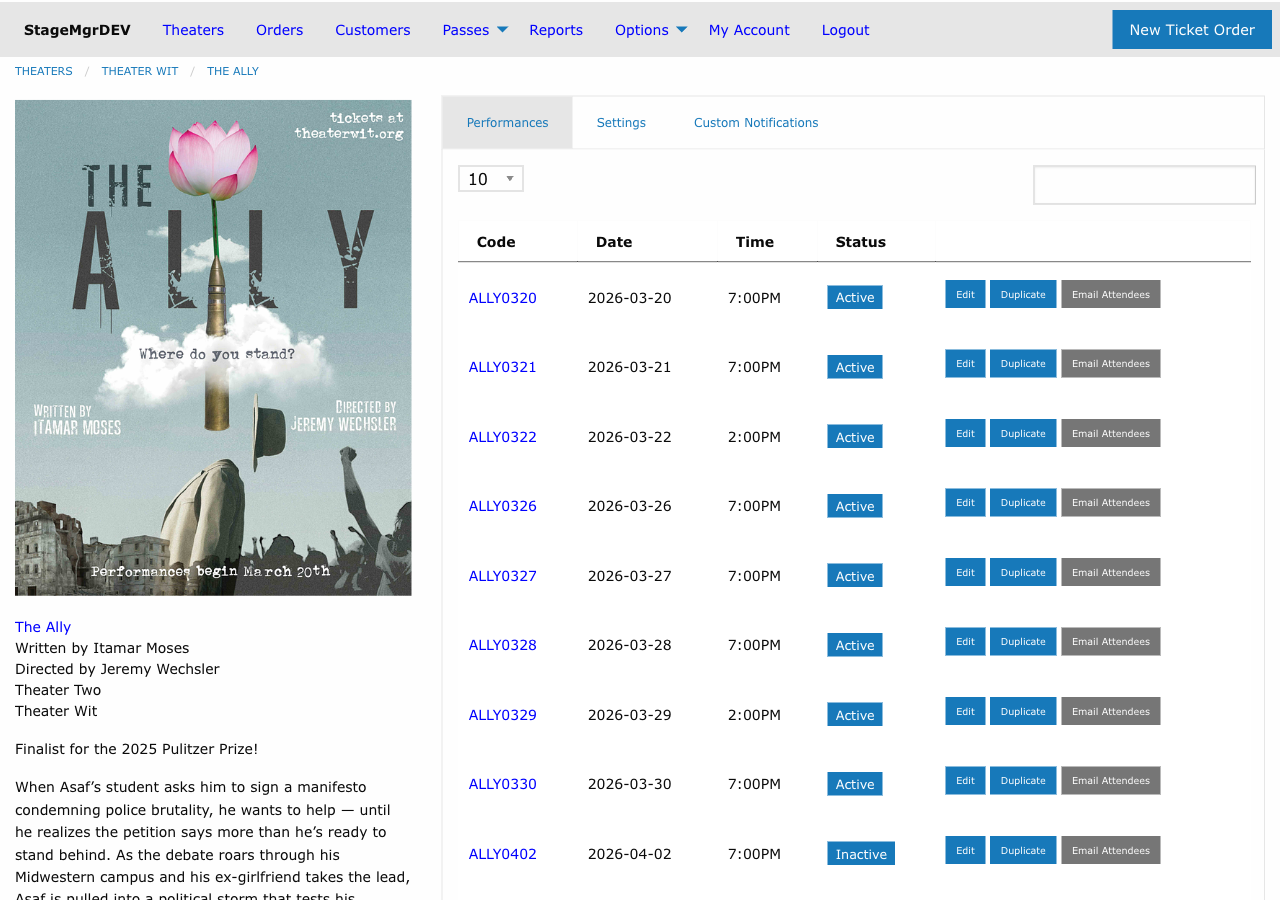
- Navigate to the production's detail page
- Find the performance you want to copy in the Performances list
- Click Duplicate in the actions column for that performance
- Stagemgr creates a new performance and opens it in the edit form
- Change the performance code, date, and time to the new values
- Review all other fields and adjust as needed
- Click Create Performance
Change the Code and Date
The duplicate starts with the same performance code and date as the original, which will fail validation since codes must be unique and date/time/production combinations cannot repeat. You must change at least the code and either the date or time before saving.
What Gets Copied
The following settings are duplicated from the source performance:
| Copied | Details |
|---|---|
| Ticket class allocations | All allocation rows including availability, ticket limits, shiftable settings, shift-to targets, and capacity/time thresholds |
| Restricted payment types | Any payment type restrictions carry over |
| Special features | Checked special feature associations are copied |
| Special feature display markdown | Custom web display text |
| Special feature email markdown | Custom email text |
| Status | Active, Inactive, or Private |
| Withhold from public | The withhold setting carries over |
| Suppress notification | The notification suppression setting carries over |
| Order URL override | External order URL, if set |
What Does Not Get Copied
| Not Copied | Reason |
|---|---|
| Orders | Orders belong to the original performance only |
| Seat assignments | Seat assignments are tied to specific orders and the original performance |
| House count data | House counts are calculated fresh for the new performance |
| Sales history | The new performance starts with zero sales |
Tips for Efficient Scheduling
-
Set up one "template" performance first with all the correct allocations, restrictions, and features. Then duplicate it for each remaining date in the run.
-
Duplicate in sequence. After saving a duplicated performance, return to the performance list and duplicate the same source (or the one you just created) for the next date.
-
Batch your changes. If several performances share settings but a few differ (e.g., a Sunday matinee with different pricing), duplicate the standard version first, then go back and edit the exceptions.
-
Use a naming scheme. Adopt a consistent performance code pattern before you start duplicating. For example, if the production code is
HAMLET, useHAMLET01throughHAMLET20for a standard run,HAMLETPVfor previews, andHAMLETOPfor opening night.
Preview Night Setup
For preview performances that need different ticket classes or pricing, duplicate a regular performance, then adjust the allocations: disable full-price classes, enable preview-priced classes, and update any special feature text.
Typical Workflow: Scheduling a Full Run
Here is a step-by-step example for scheduling a three-week run with 12 performances:
-
Create the first performance manually with the correct date, time, ticket class allocations, dynamic pricing settings, and any special features. Save it and verify the allocation table looks correct.
-
Duplicate for the second performance. Click Duplicate, change the code to your next sequential number, update the date and time, and save.
-
Repeat for the remaining 10 performances. Each duplicate inherits everything from the source, so you only need to update the code, date, and time each time.
-
Go back and edit exceptions. If certain performances have different configurations (e.g., Saturday matinees with different pricing tiers, or the final performance with a talkback), edit those individually.
-
Verify the full schedule. Return to the production detail page and review the performance list to confirm all dates, times, and statuses are correct.
Common Scenarios
| Scenario | Approach |
|---|---|
| Standard evening performances (same pricing, same allocations) | Duplicate one source performance for each evening date |
| Matinee with different pricing | Duplicate an evening performance, then edit allocations to adjust prices or enable different ticket classes |
| Preview performances | Duplicate a regular performance, disable full-price classes, enable preview-priced classes |
| Industry night | Duplicate a regular performance, add industry-specific ticket class to allocations, check "Withhold from Public" if invite-only |
| Added performance (mid-run) | Duplicate any existing performance with similar settings, adjust date/time |
Verify After Duplicating
Always review the ticket class allocation table after saving a duplicated performance. While allocations are copied faithfully, it is good practice to confirm that availability checkboxes, ticket limits, and dynamic pricing thresholds are correct for the new date.