Managing Patrons
Role: Box Office Staff, Managers, Administrators
Patron records (called "Addresses" in Stagemgr) are the foundation of customer management. Every ticket buyer, donor, member, and comp recipient has an address record.
Navigation: Admin > Addresses
Searching for Patrons
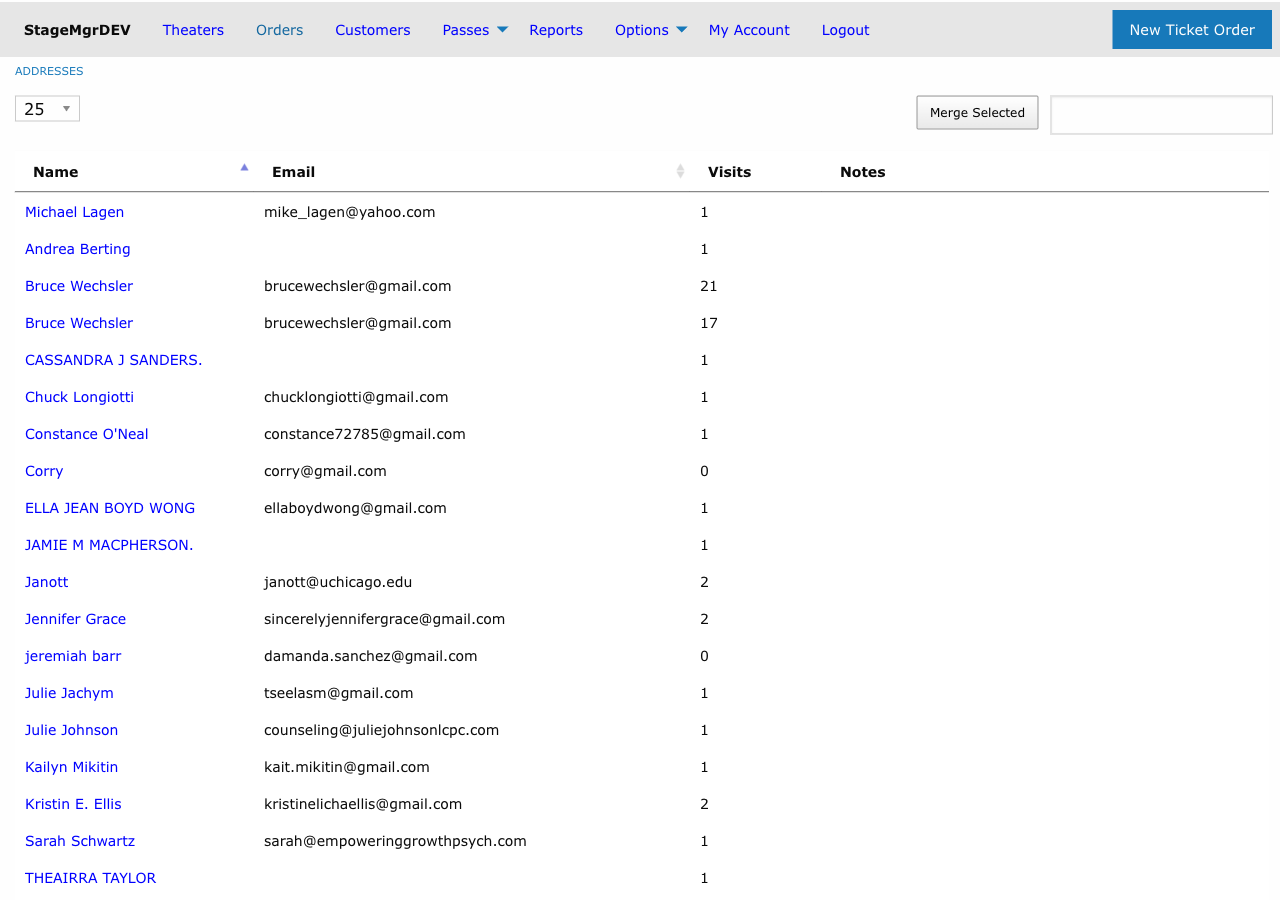
Stagemgr provides an autocomplete search that appears throughout the system wherever a patron needs to be selected (order creation, reports, etc.).
| Search Behavior | Detail |
|---|---|
| Format | Type "First Last" to search |
| Results | Up to 15 matches returned |
| Member tag | Active members display a [MEMBER] badge next to their name |
| Recent activity | Results include recent productions the patron attended |
| Matching | Searches against search_name and last_first_name indexed fields |
Tip
Typing at least three characters triggers the autocomplete dropdown. If you do not see the patron you expect, try searching by last name only or by email address from the full Addresses index page.
Creating a New Patron Record
- Navigate to Admin > Addresses.
- Click New Address.
- Fill in the required and optional fields (see table below).
- Click Save.
Patron Fields
| Field | Required | Description |
|---|---|---|
| Full Name | Yes | The patron's complete name as it should appear on correspondence |
| First Name | Auto | Parsed automatically from Full Name |
| Last Name | Auto | Parsed automatically from Full Name |
| No | Validated for proper format; used for order confirmations and communications | |
| Phone | No | Contact phone number |
| Line 1 | No | Street address, line 1 |
| Line 2 | No | Street address, line 2 (apartment, suite, etc.) |
| City | No | City |
| State | No | State or province |
| Zipcode | No | Postal code |
| VIP | No | Boolean flag marking the patron as a VIP for special handling |
| Placeholder | No | Boolean flag indicating this is a non-buyer record (e.g., guest names, will-call pickups) |
| Photo | No | Upload a patron photo; image variants are generated automatically for different display sizes |
Warning
The Full Name field is the only required field. However, an email address is strongly recommended for any patron who will receive order confirmations, membership communications, or broadcast emails. Email format is validated on save.
Editing a Patron Record
- Navigate to Admin > Addresses and search for the patron.
- Click the patron's name to open their record.
- Edit any fields as needed.
- Click Save.
VIP and Placeholder Flags
- VIP: Marks a patron for special treatment. VIP status appears in house management reports and can be used to flag donors, board members, or other important guests.
- Placeholder: Indicates that the record is not a real buyer. Placeholder records are excluded from broadcast emails and certain reports. Use these for generic entries like "Will Call Guest" or test orders.
Photo Upload
Each patron record supports a photo attachment. Uploaded images are processed into multiple size variants for use in different views (thumbnails, profile displays, etc.). To upload:
- Open the patron's record for editing.
- Click the photo upload area or Choose File.
- Select an image file and save the record.
Shared Address Records Across Theaters
Address records in Stagemgr are shared across all theaters in the system. A single patron record is used regardless of which theater they purchase tickets from. This means:
- A patron who buys tickets at multiple venues has one unified record.
- Tags, memberships, and flex passes can be scoped to specific theaters while the core address data remains shared.
- Merging duplicate records consolidates activity across all theaters.
Tip
Because address records are shared, be careful when editing patron information. Changes affect the patron's record across every theater in the system.
What Theater Users See
Theater users see a narrower view of a patron than box office staff and administrators:
- Notes column (customer list): an active member shows as Member [Offer Name], the membership offer's name as plain text, instead of the linked member code.
- Customer page: there is no Active Memberships box and no donor tier labels. The tag list still shows. Productions Attended lists only productions at the theater user's own theaters.
Deleting Patron Records
Patron records that have finalized orders (Processed, Fulfilled, or Unclaimed) cannot be deleted. This protects order history and financial records. Only records with no associated finalized orders may be removed.
Warning
Before attempting to delete a patron record, check their order history. If the patron has any completed transactions, the system will prevent deletion. Consider marking the record as a Placeholder instead if you need to deactivate it.