Seat Map Editor
Required Role
Administrator or Box Office can use the seat map editor.
Navigation: Options > Venues > [select a venue] > [select a seat map] > Open Seat Map Editor
What Is the Seat Map Editor?
The seat map editor is a graphical tool for editing a seat map directly on top of its base image -- an alternative to re-importing a geometry CSV file. With it you can:
- Move seats by dragging them, individually or as a group (e.g., nudge a whole row)
- Add new seats by clicking their position on the map
- Delete seats that have no sold or held tickets
- Edit a seat's label, zone, circle size, and exact X/Y coordinates
- Paint zones across many seats at once for zoned pricing
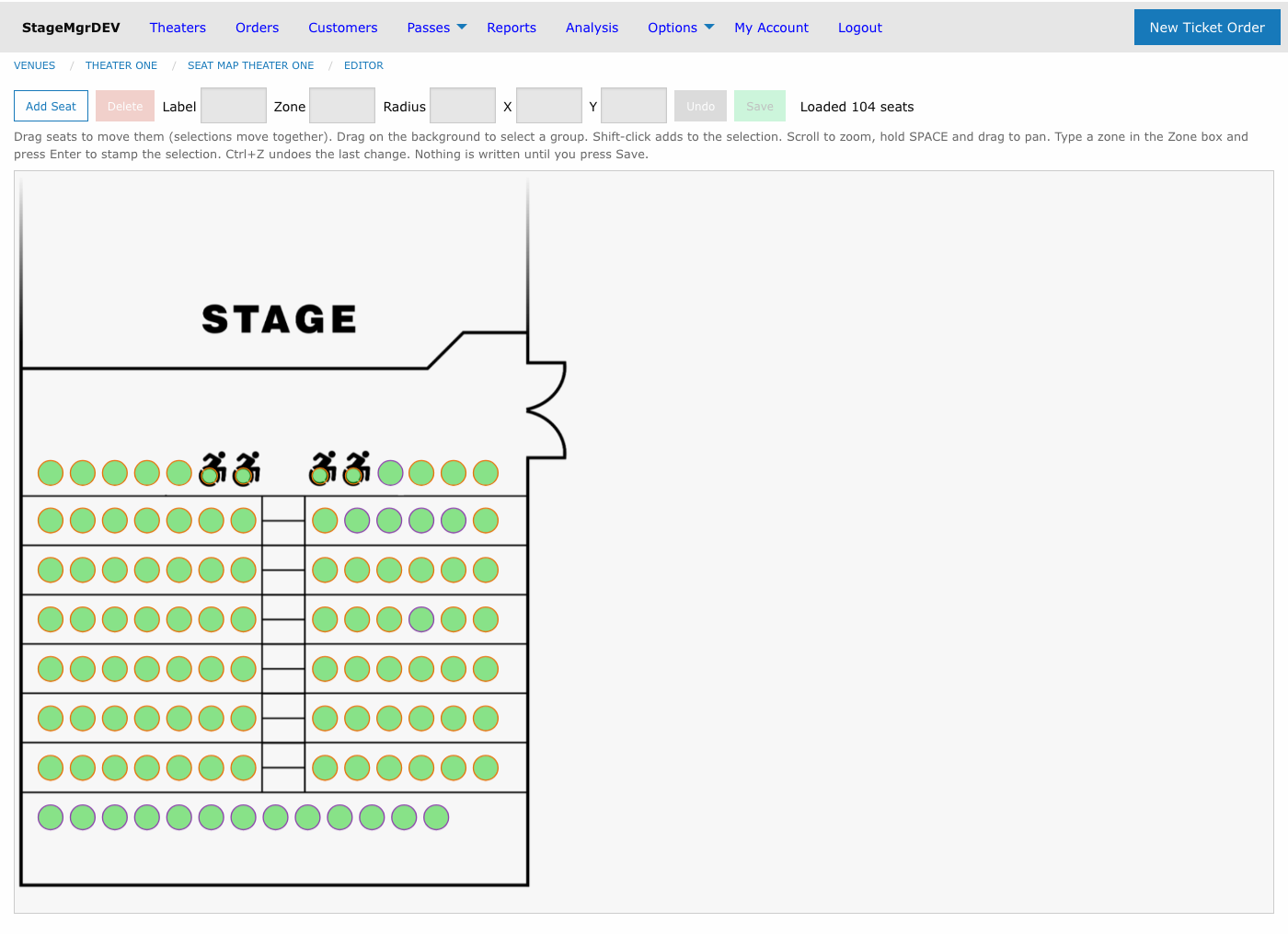
Nothing is saved until you press Save
All edits happen in a working copy in your browser. The Save button writes every pending change in a single all-or-nothing batch. If you leave the page without saving, your changes are discarded (the browser warns you first). This means you can always abandon a bad editing session by simply reloading the page.
The Toolbar
| Control | Purpose |
|---|---|
| Add Seat | Toggles add-seat mode -- click a spot on the map to place a new seat |
| Delete | Deletes the selected seats (enabled only when seats are selected) |
| Label | Shows/edits the seat location label -- editable only when exactly one seat is selected |
| Zone | Shows/edits the zone for the selected seats |
| Radius | Shows/edits the circle radius (in pixels) for the selected seats |
| X / Y | Show/set the coordinates of the selected seats -- ideal for aligning a row |
| Undo | Reverts the most recent change (also Ctrl+Z) |
| Save | Writes all pending changes; enabled only when there is something to save |
A red ● unsaved changes indicator appears whenever the working copy differs from what is saved, and the status area on the right reports the result of each action.
Selecting Seats
- Click a seat to select it
- Shift-click to add or remove individual seats from the selection
- Drag on the background to rubber-band select a group (e.g., a whole row)
- Escape clears the selection
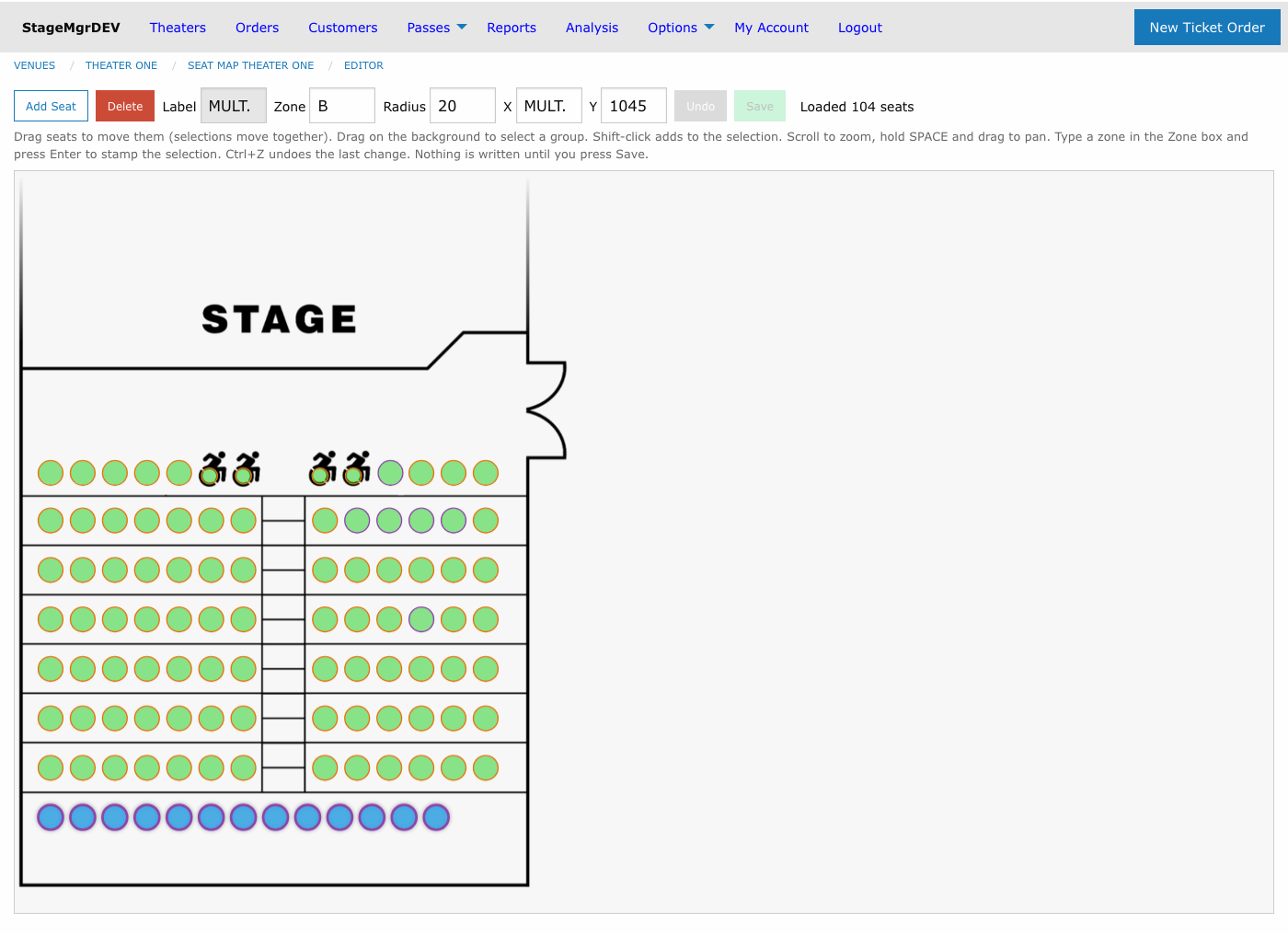
When multiple seats are selected, each property box shows the value they share, or mult. when the values differ. The Label box is the exception -- labels are unique per seat, so it reads mult. and locks whenever more than one seat is selected.
Moving and Aligning Seats
Drag any selected seat and the whole selection moves together, keeping relative positions -- this is the easiest way to shift an entire row or section.
For precise alignment, use the X and Y boxes: select a group of seats, type a value, and press Enter. The value is applied to every selected seat on that axis. To straighten a ragged row, marquee-select it and set Y once.
Editing Seat Properties
Each property box follows the same pattern: type a value and press Enter or Tab to apply it to the selection; press Escape to revert the box without changing anything.
| Property | Rules |
|---|---|
| Label | One seat at a time; must be unique within the seat map |
| Zone | 1--2 characters, letters and digits only (e.g., A, B2) |
| Radius | Whole number of pixels, 2--99 |
| X / Y | Whole number of pixels, 0--9999 |
Sold seats can still be edited
Seats with sold or held tickets can be moved, resized, relabeled, and re-zoned -- geometry and zone changes are harmless after a sale, since zones are only checked at sale time. Such seats simply cannot be deleted.
Zoom and Pan
- Scroll to zoom (50%--400%), centered on the cursor
- Hold SPACE and drag to pan around the map
- A plain drag on the background remains marquee-select
Adding a Seat
- Click Add Seat -- the button highlights and the cursor becomes a crosshair
- Click the spot on the map where the seat belongs
- Review the New Seat form and click Add
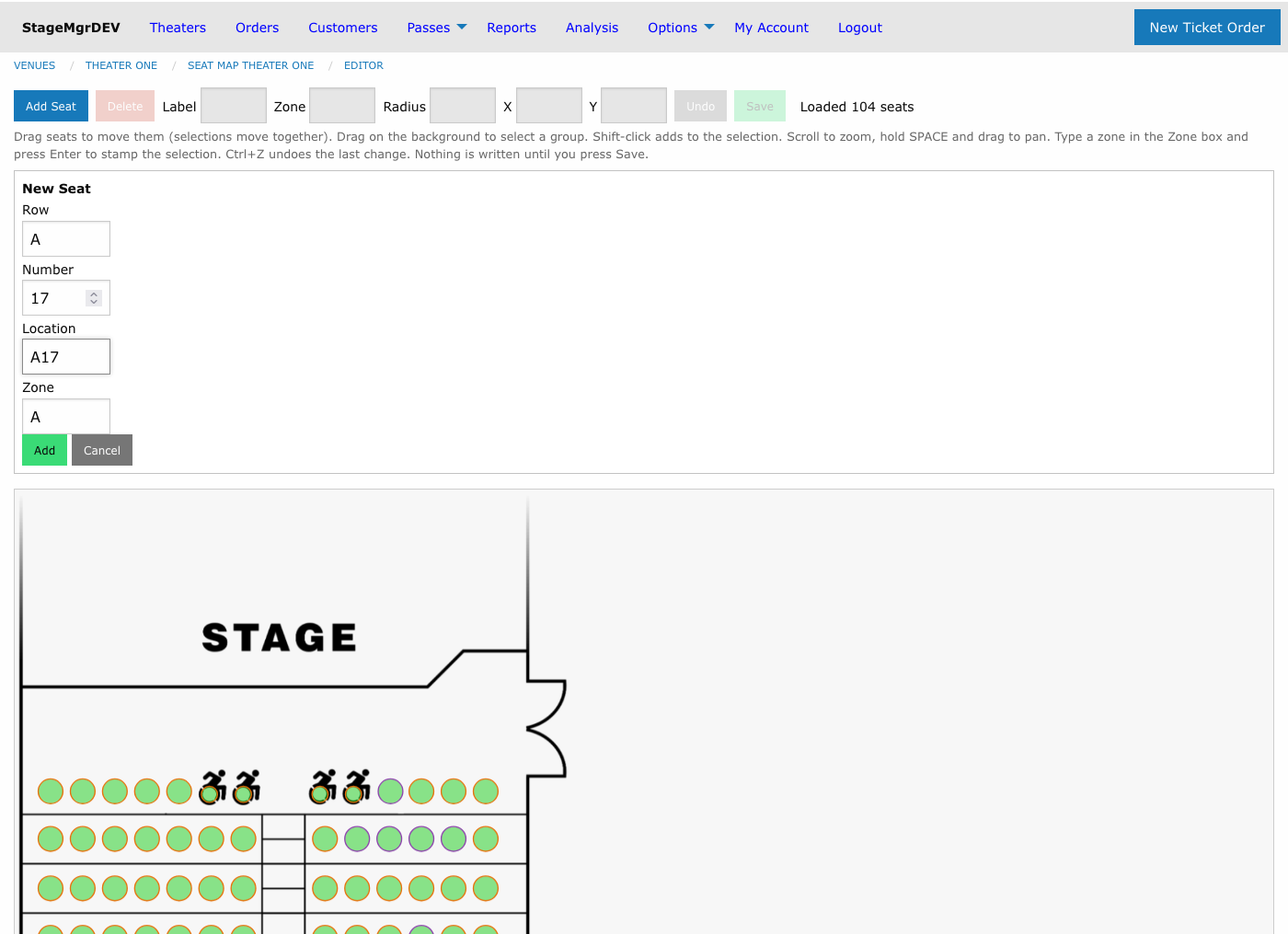
The form is pre-filled with suggestions derived from the seat nearest to where you clicked:
| Field | Suggested value |
|---|---|
| Row | The nearest seat's row |
| Number | The highest seat number in that row, plus one |
| Location | Row + number (e.g., A + 17 = A17) |
| Zone | The nearest seat's zone |
The new seat also copies the nearest seat's circle size so it matches its neighbors visually. Every suggestion can be edited before you confirm; the location must be unique within the map.
Performance inventory is created automatically
When you Save, newly added seats get a seat assignment record in every existing performance of productions using this map -- exactly as the CSV geometry import does. The new seat becomes sellable immediately, and the production's capacity (which equals the seat count) rises by one.
Deleting Seats
Select one or more seats and click Delete (or press the Delete/Backspace key). Deletion is blocked -- for the entire selection -- if any selected seat has sold or held tickets; the error message names the seats in the way. Deleting a seat removes its availability from all performances when you Save.
Undo
Ctrl+Z (or the Undo button) reverts the most recent action -- a drag, an add, a delete, or a property change. One level of undo is kept, and it is cleared when you Save.
Saving
Save submits every pending change as one batch. Either all changes are written or none are -- if any change is rejected (for example, a duplicate label), the save fails with a message and nothing is modified. After a successful save the editor reloads the map, and the Undo history resets.
Seat Zones and Zoned Pricing
Zones connect the seat map to ticket class pricing. Every seat carries a zone (default A), and every ticket class carries a Zone ID:
- A ticket class with Zone ID
*(the default) can be sold into any seat - A ticket class with a specific Zone ID (e.g.,
B) can only be sold into seats whose zone matches
The rule is enforced everywhere -- the public seat selector, the box office, and reseating -- with no override. To price a section differently, give its seats a zone in the editor, then create ticket classes with that Zone ID. Legacy maps and classes keep working untouched: all seats default to zone A and all classes default to *.
To paint a zone: select the seats (a marquee drag grabs a whole section), type the zone into the Zone box, and press Enter. In the editor, each seat's border color reflects its zone so you can see the zone layout at a glance.
Presenting Zones to Patrons and Staff
By default, seating displays outside the editor draw all seats with plain borders. Enable Present as zoned on the seat map form to color seat borders by zone on the public seat selector, the box office seat picker, and the seat map preview:
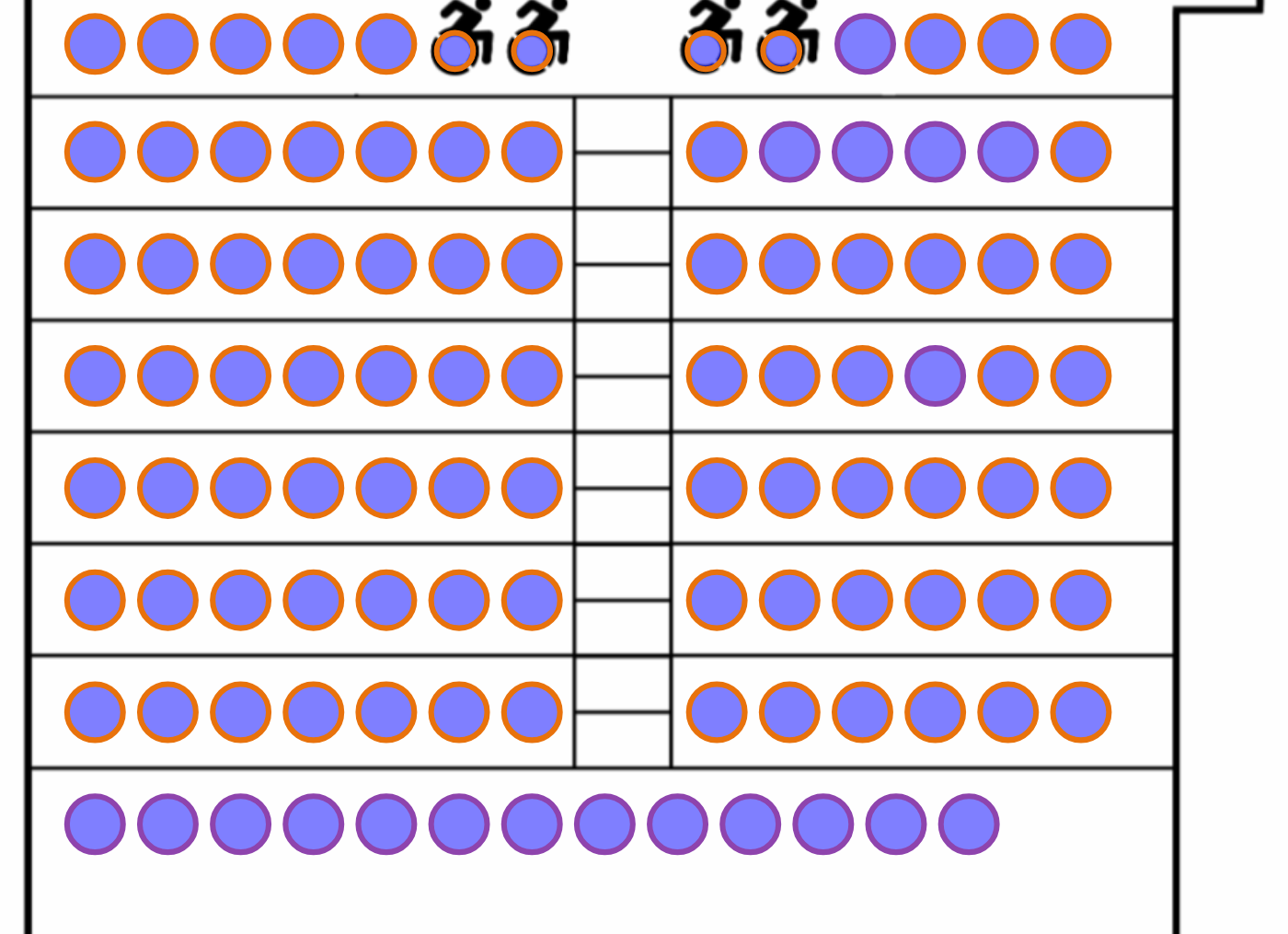
Each zone on a map gets a distinct border color (up to ten). The flag is purely visual -- zone matching rules apply whether or not it is enabled. Border colors never interfere with the fill colors that show availability (available, selected, unavailable).