Creating a Ticket Order: General Admission
Role: Box Office Staff, Administrators
This page covers creating ticket orders for general admission (non-reserved seating) performances. For reserved seating, see Creating a Ticket Order: Reserved Seating.
Navigation: Stagemgr > Orders > Ticket Orders > New Ticket Order
Overview
General admission ticket orders allow patrons to purchase tickets without selecting specific seats. The box office selects the ticket class and quantity, and the system manages inventory automatically.
Step-by-Step Process
Step 1: Customer Lookup
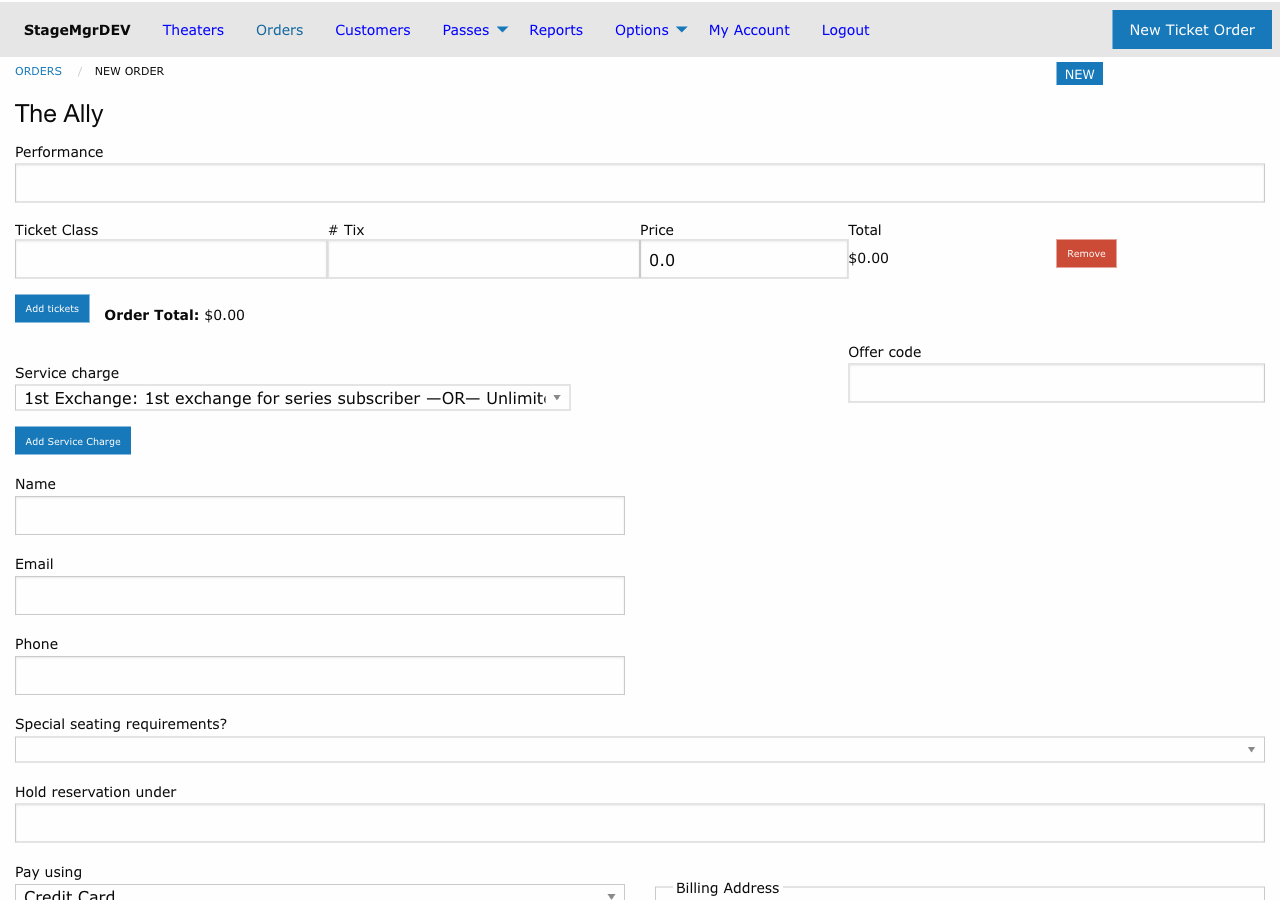
Begin by finding or creating the patron's record.
- In the Address section, start typing the patron's name in the search field
- The autocomplete will suggest matching records as you type
- Select the correct patron from the dropdown
- If the patron is new, fill in the address fields manually:
| Field | Required | Description |
|---|---|---|
| Full Name | Yes | Patron's full name |
| Yes | Email address for confirmations and receipts | |
| Line 1 | No | Street address |
| Line 2 | No | Apartment, suite, etc. |
| City | No | City |
| State | No | State |
| Zipcode | No | ZIP code |
| Phone | No | Phone number |
Autocomplete
The address search matches on name, email, and phone number. If a patron has multiple records, verify you are selecting the correct one by checking the email address.
Step 2: Select Performance
- In the Performance field, begin typing the performance code
- The autocomplete will show matching performances
- Select the desired performance from the results
The performance code includes the production name, date, and time, making it easy to identify the correct show.
Step 3: Select Ticket Class and Quantity
Once a performance is selected, the ticket class options appear.
- A dropdown displays available ticket classes for the performance (e.g., Adult, Senior, Student, Child)
- Enter the quantity for each ticket class you wish to add
- The system will show current availability and pricing for each class
Availability
If a ticket class shows zero availability, it is sold out for that performance. Check other ticket classes or performances.
Step 4: Special Requests (Optional)
For general admission performances, special accessibility requests are available:
| Request | Description |
|---|---|
| Wheelchair | Patron requires wheelchair-accessible seating |
| Wheelchair Transfer | Patron can transfer from wheelchair to a standard seat |
| No Stairs | Patron cannot navigate stairs |
Select the appropriate option from the special request dropdown if needed.
Step 5: Apply Special Offer (Optional)
If the patron has a discount or promotional code:
- Enter the code in the Special Offer Code field
- The autocomplete will suggest matching offers
- Select the correct offer to apply the discount
The order total will update to reflect the applied discount.
Step 6: Marketing Source (Optional)
Select how the patron heard about the show from the Marketing Source dropdown:
- Cast/Staff/Production Team
- Review/Feature
- Radio
- Newspaper Ad
- Word of Mouth
- Attended previous production
- Other
Reporting
Marketing source data is used in sales reports to track the effectiveness of different marketing channels. Filling this in consistently helps the organization make informed marketing decisions.
Step 7: Additional Options
| Field | Description |
|---|---|
| Add to Email List | Check this box to add the patron to the theater's mailing list |
| Notes | Free-text area for any special instructions or information about the order |
Step 8: Payment
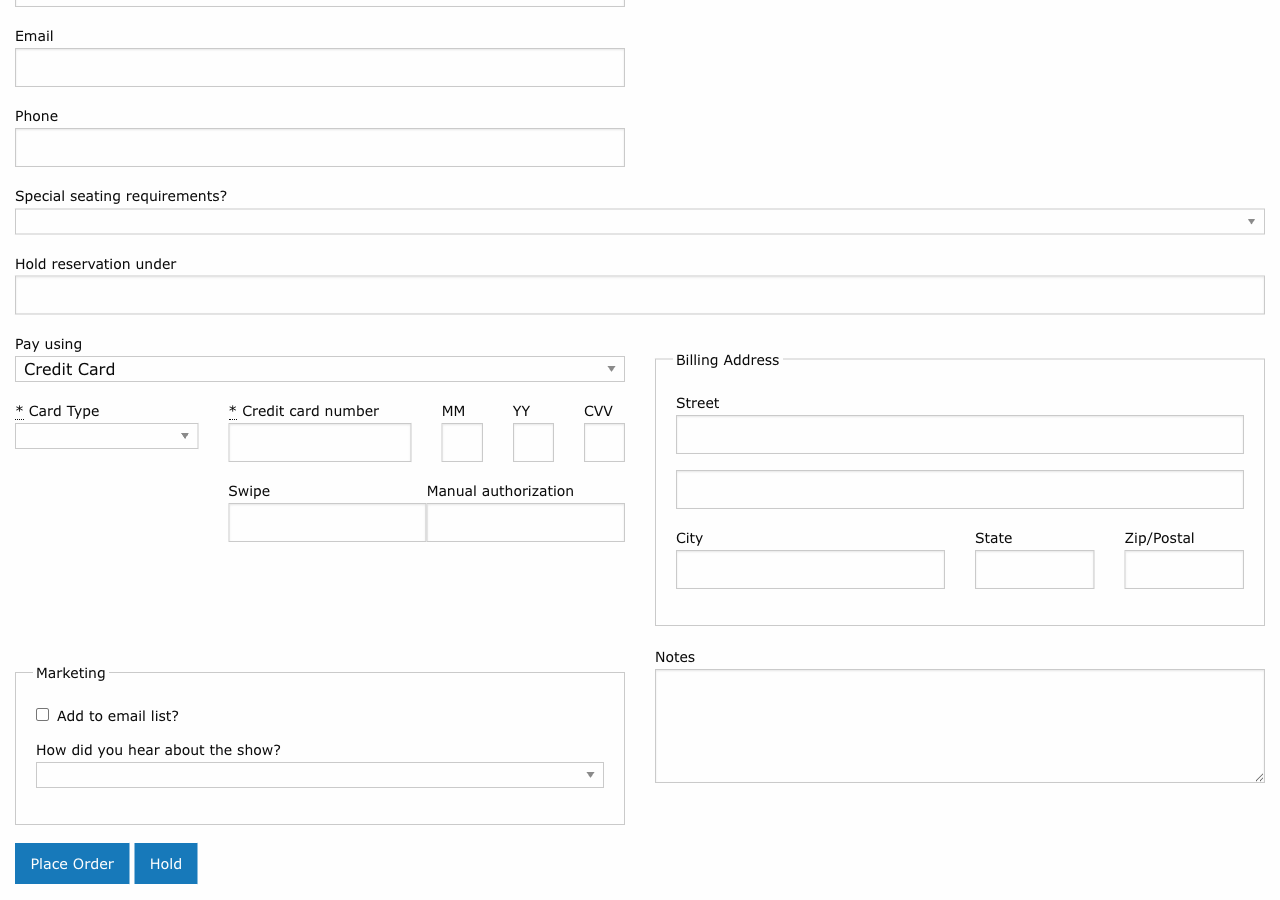
Select and process payment for the order. See Payment Processing for full details on each payment method.
- Choose the payment method (credit card, cash, check, comp, flex pass, etc.)
- Enter the required payment details
- Submit the order
Step 9: Confirmation
After successful submission:
- The order is created with status Processed
- A confirmation email is sent to the patron (if email is on file)
- You are redirected to the order detail page
- The order appears in the orders list and is searchable
Common Scenarios
Phone Order
A patron calls to buy tickets. Search for their existing record, select the performance, choose ticket classes and quantities, take credit card payment over the phone, and submit.
Walk-Up Sale
A patron arrives at the box office. Create or find their record, select tonight's performance, process payment (often cash or credit card), and fulfill immediately.
Group Sale
For a group, create one order with the total quantity across the appropriate ticket classes. Use the Notes field to record group details. If the group needs to be split later, see Split Orders.
Inventory
Always verify availability before promising tickets to a patron. The system prevents overselling, but checking first avoids awkward conversations.