Membership Reports
Roles: Box Office, Admin
Membership Usage is available under the Membership Reports permission group. Membership Orders is available under the Box Office Reports permission group.
Navigation: Admin Menu > Reports > Membership Usage / Membership Orders
Overview
Stagemgr provides two membership-related reports. Membership Usage gives a month-by-month summary of membership counts and income. Membership Orders generates a detailed CSV of individual membership orders, with an optional TRG-compatible format.
Membership Usage
Purpose
The Membership Usage report tracks membership activity over time, showing -- for each month and each membership offer -- how many memberships were active, how much was collected, and how much was paid out. It is useful for trend analysis, budgeting, and reporting to management.
Generating the Report
- Navigate to Admin Menu > Reports.
- In the Membership Usage section, enter a start date and end date.
- Optionally, limit the report to one or more membership offers using the offer picker -- search by offer name or tag.
- Click Show to display results on screen, or Download to export a CSV.
Input Fields
| Field | Required | Description |
|---|---|---|
| Start Date | Yes | The beginning of the reporting period |
| End Date | Yes | The end of the reporting period |
| Limit to offers | No | Restrict the report to the selected membership offers. Leave empty to include all offers. |
Full months only
The system automatically expands your date range to align with full calendar months. For example, if you enter March 10 through May 15, the report covers March 1 through May 31. This keeps month-over-month comparisons consistent.
The current month is never included
The current month is always excluded, because its payment data is still incomplete. A report run at any point in July, for instance, ends at June 30. This applies to every way of running the report, including the per-offer Usage button.
Output Format
The report is grouped by month. Within each month there is one detail row per membership offer, followed by an All Offers summary row that totals that month across every offer. A single grand Total row at the very bottom sums the money columns across every month in the range.
| Column | Description |
|---|---|
| Month | Calendar month (e.g., 2026-05). The final row reads Total. |
| Offer | The membership offer name on detail rows; All Offers on the monthly summary rows. |
| Memberships | Number of memberships active in that month for that offer. An Active membership with no end date is active from its start date onward. Any other membership is active until the later of its end date and the date it is paid through (its last payment plus one billing period: a month, or a year for a yearly offer), so payments win over a stale status or end date. A Pending membership counts only if it has been paid. |
| Members | Number of people those memberships admit -- each membership counts its offer's tickets-per-performance, so a dual membership counts as two members. |
| Collected | Total amount collected on membership orders. |
| Paid | Ticket value members redeemed with their memberships. An exchanged order counts once: the exchange credit cancels the original order's redemption, leaving only the replacement order's. |
| Passes | Number of library passes (timed offers) active in that month. Each pass counts once, however many seats it admits. |
| Pass Redeemed | Ticket value redeemed with library passes, counted the same way as Paid. |
Library passes are free and staff-issued, so they are kept out of the membership columns: a timed offer's row fills only Passes and Pass Redeemed, and a membership offer's row leaves those two blank. The All Offers and Total rows add each column separately, so Memberships, Members, Collected and Paid never include passes.
The Total row does not total the count columns
Memberships and Members are active-during-month counts. Adding them across months would count every membership once per month it spans, so the grand Total row leaves those two columns and Passes blank and totals only Collected, Paid and Pass Redeemed.
When the report is limited with the offer picker, detail rows cover only the selected offers, the monthly All Offers summary rows total just that selection, and the on-screen report ends with a "Limited to:" footnote naming the selected offers.
When the All Offers rows are omitted
The per-month All Offers summary rows are dropped whenever they would be redundant or unwieldy: when exactly one offer is selected (they would duplicate the detail rows) and in CSV downloads (so the file loads cleanly into a spreadsheet). The grand Total row always remains.
Running the Report for a Single Offer
You can run this report for one membership offer over its entire history straight from the Membership Offers list: click the Usage button on the offer's row.
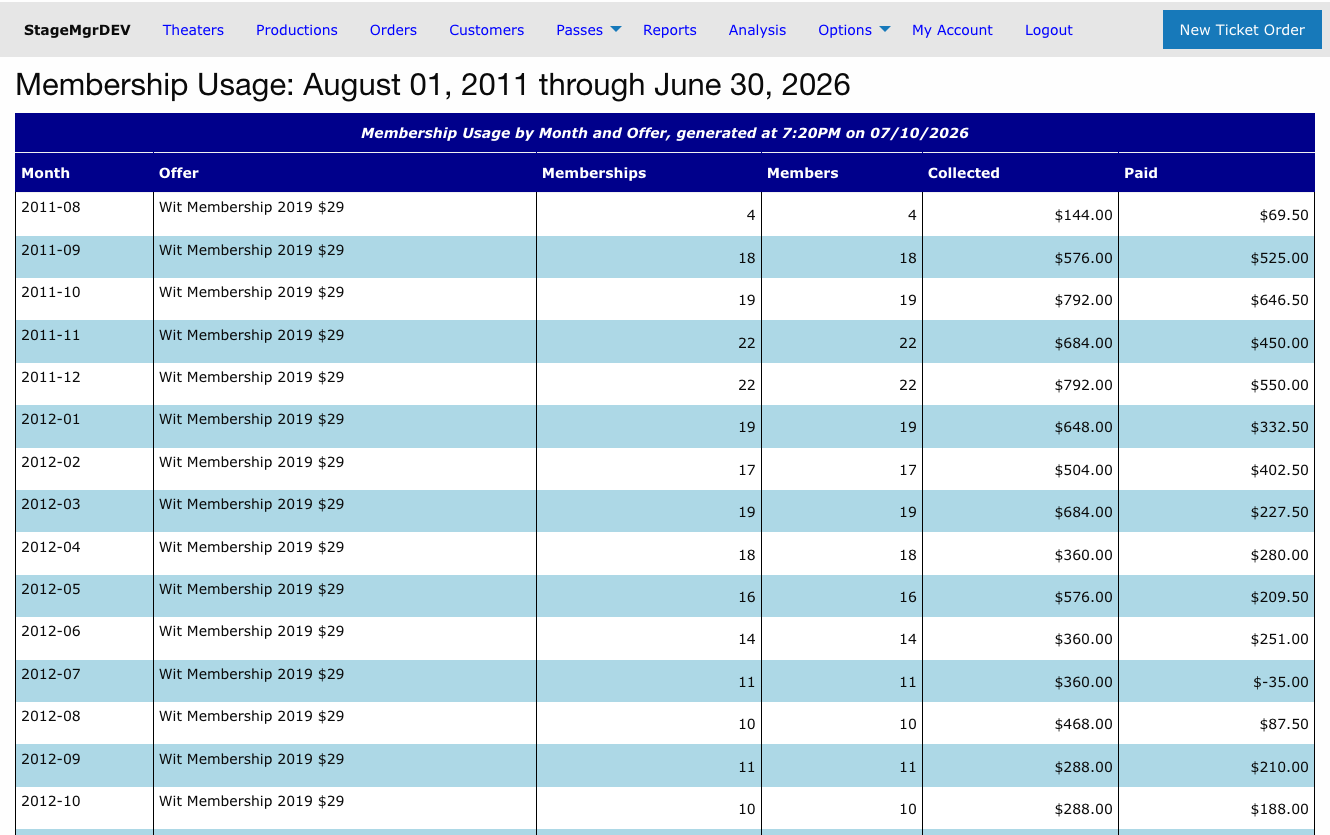
The per-offer report behaves the same as the full report with two differences:
- The date range is set automatically to span from the offer's first membership payment through the end of last month -- you don't choose dates.
- Because only one offer is included, the redundant per-month All Offers summary rows are omitted. The grand Total row at the bottom still totals every month.
Membership Orders
Purpose
The Membership Orders produces a detailed CSV of individual membership orders within a date range, with an optional TRG-compatible format for TRG Arts integration.
Generating the Report
- Navigate to Admin Menu > Reports.
- In the Membership Orders section, enter a start date and end date.
- Optionally, check the TRG Lists checkbox to format the export for TRG Arts compatibility.
- Optionally, limit the export to one or more membership offers using the offer picker -- search by offer name or tag.
- Click Generate. The report runs as a background job.
- When processing completes, you will receive an email with a download link. The report also appears in the Generated Reports section at the bottom of the Reports page.
Input Fields
| Field | Required | Description |
|---|---|---|
| Start Date | Yes | Include membership orders on or after this date |
| End Date | Yes | Include membership orders on or before this date |
| TRG Lists | No | When checked, formats the export for TRG Arts data integration |
| Limit to offers | No | Restrict the export to orders for the selected membership offers. Leave empty to include all offers. |
Background Job
This report runs as a background job and is delivered via email. Processing time depends on the number of membership orders in the selected range.
Report Contents
| Column | Description |
|---|---|
| Order ID | Membership order identifier |
| Customer Name | Member's full name |
| Email address | |
| Phone | Phone number |
| Address | Mailing address |
| Membership Type | The membership level or tier purchased |
| Order Date | Date the membership was purchased |
| Amount | Payment amount |
| Status | Current order status |
TRG Lists Flag
When the TRG Lists checkbox is enabled, the export includes additional fields and formatting required by TRG Arts for data integration. Column headers, ordering, and data formatting all conform to TRG Arts import specifications.
Typical Use Cases
- Monthly board reporting: Use Membership Usage to show membership growth and income trends.
- Renewal campaigns: Export membership orders to identify members approaching renewal dates.
- Revenue forecasting: Analyze month-over-month membership income for budget planning.
- TRG Arts integration: Enable the TRG Lists flag for direct upload to TRG platforms.